Configure tax settings
The Tax Settings page in the FlyCommerce admin is where you group products into tax classes, choose how tax is calculated at checkout, and manage tax exemptions and economic nexus tracking. Store owners and marketplace admins use this page to set up tax for their store.
Create tax classes
Section titled “Create tax classes”Tax classes group products that follow the same tax rules. Create your tax classes before you set up automated calculations with AvaTax or manual rules.
- Go to Settings → Tax.
- Review the tax classes table. It shows each class name, how many products use the class, and edit and delete actions for each class.
- Click Create Tax Class to add a class.
- Assign each class to products from the product form.
FlyCommerce includes three default classes: Reduced Rate, Standard Rate, and Zero Rate. The delete icon is disabled for Standard Rate, so that class can’t be deleted.
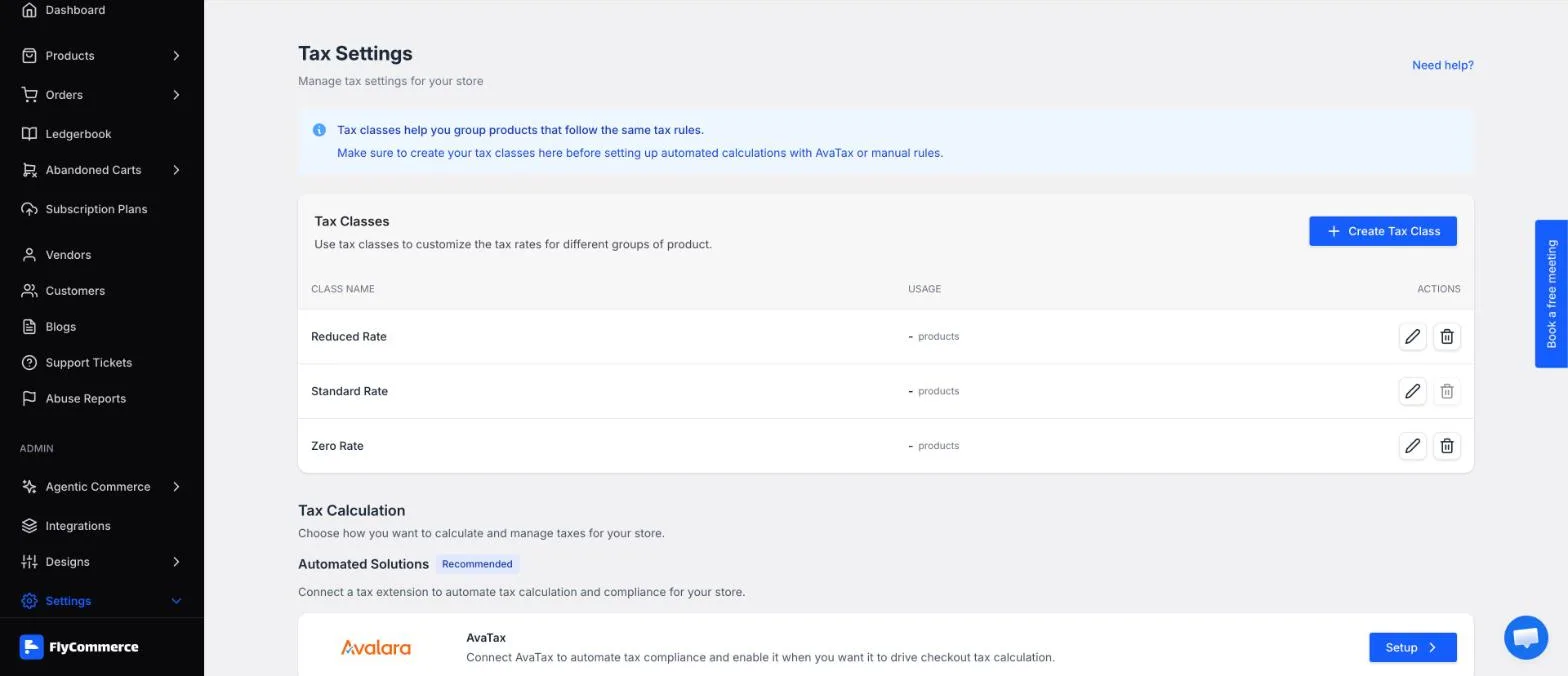
The Tax Classes table lists the default classes, with usage counts and edit and delete actions.
Choose a tax calculation method
Section titled “Choose a tax calculation method”The Tax Calculation section asks you to choose how you want to calculate and manage taxes for your store. It offers two options:
- Automated Solutions (Recommended): Connect AvaTax to automate tax compliance and enable it when you want it to drive checkout tax calculation. Click Setup to begin. For setup steps, see the Avalara AvaTax configuration guide.
- Manual Tax Rules: Set tax rates for the locations where you collect tax when AvaTax is not the active calculator. Click Setup to begin.
Use one approach to drive checkout tax. Manual tax rules apply when AvaTax is not the active calculator, so decide which method your store uses before you configure rates.
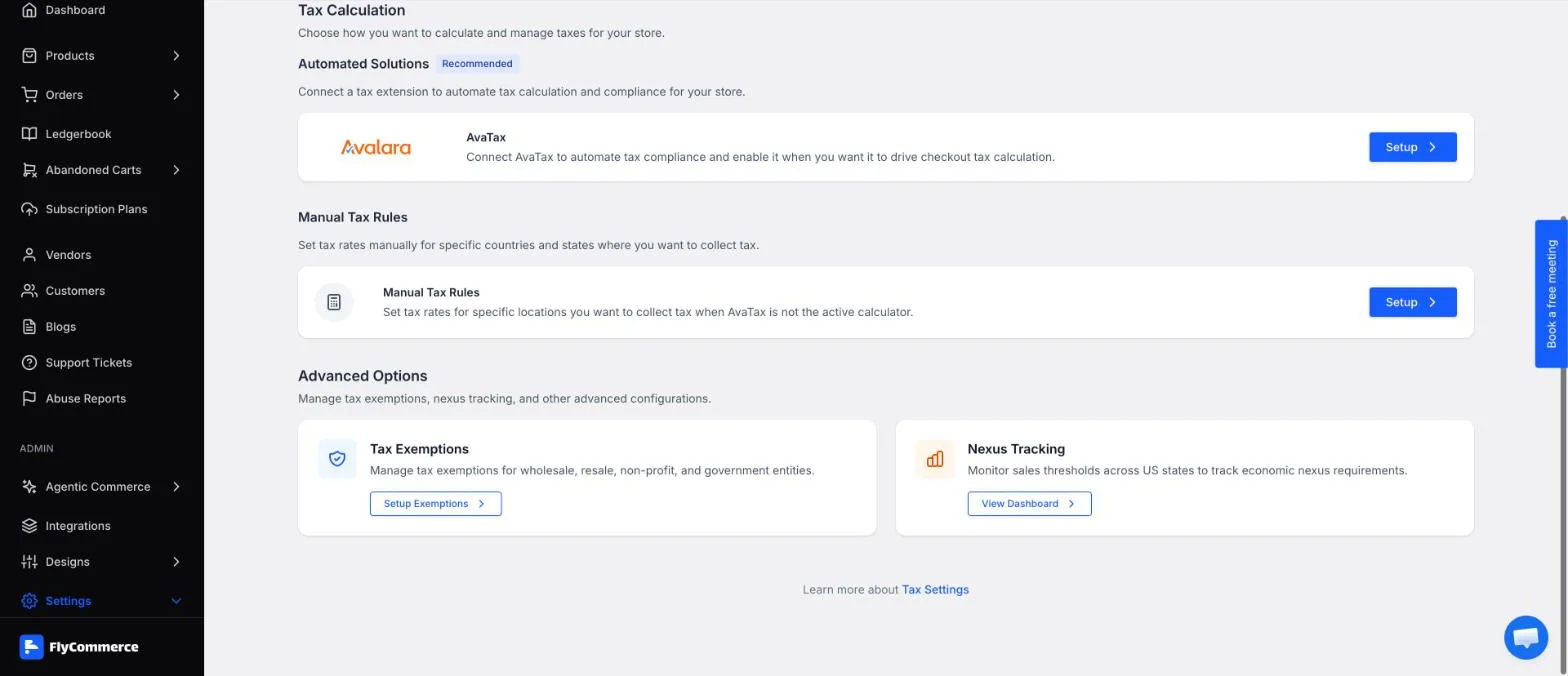
The Tax Calculation section lists AvaTax and Manual Tax Rules, each with a Setup button.
Set up manual tax rules
Section titled “Set up manual tax rules”Use manual tax rules to set tax rates for specific countries, states, and locations without AvaTax.
- In Tax Calculation, click Setup under Manual Tax Rules.
- On the Manual Tax Configuration page, click Add Country. If you have not added a country yet, the page shows “No country added yet!” You can also use the Import button.
- In Select Country, search for the country or browse the list, which is grouped by continent. Select the country and click Continue.
- After you add a country, click Add State to add states to it. Set a tax name and rate for the state.
- Review the options for applying tax to shipping and to digital products, and the compound tax option, and set them as your store requires.
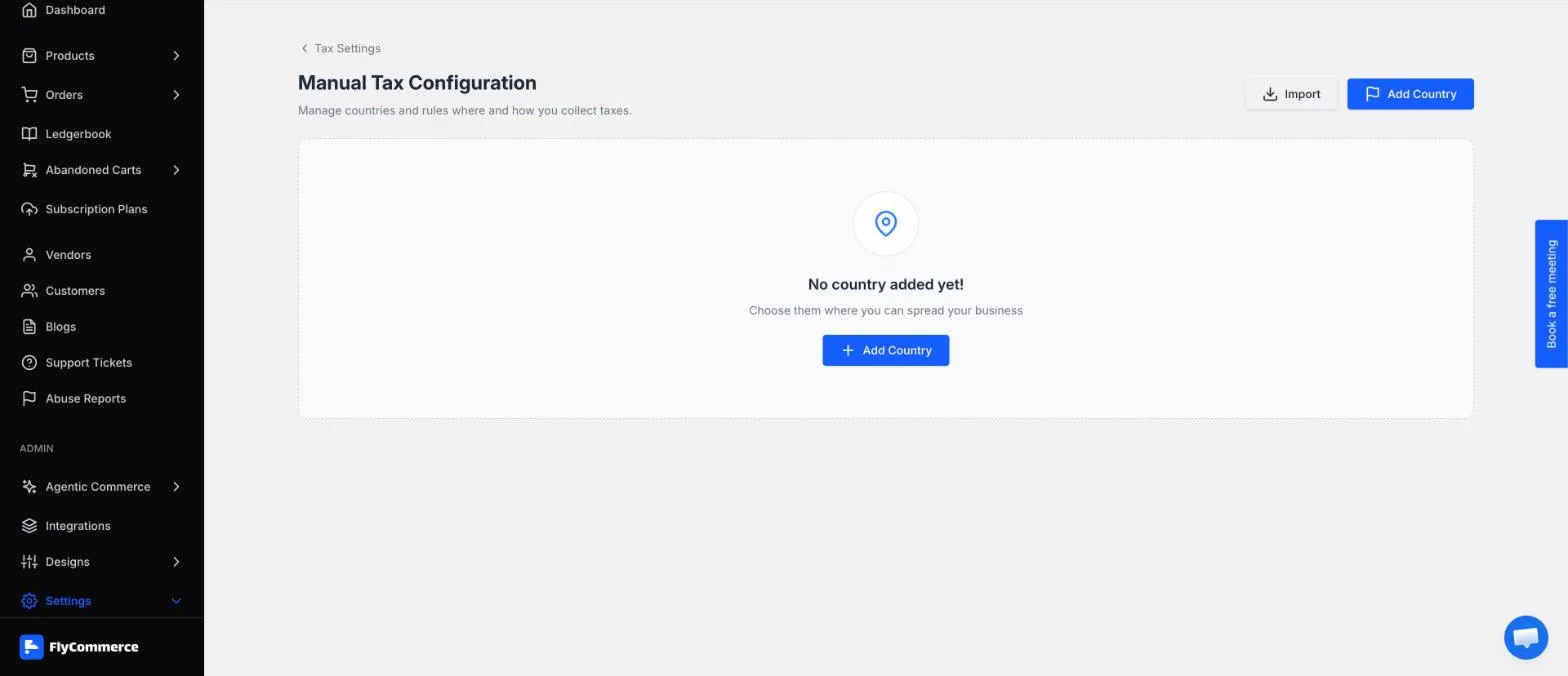
The Manual Tax Configuration page provides the Import and Add Country buttons.
A compound tax is calculated on a total that already includes another tax. For example, on a $100 price, a first tax of 10% adds $10. A compound second tax of 5% applies to $110, which adds $5.50. The total tax is $15.50.
Manage tax exemptions
Section titled “Manage tax exemptions”Under Advanced Options, Tax Exemptions lets you manage tax exemptions for wholesale, resale, non-profit, and government entities. Click Setup Exemptions to open the exemption certificates page, then click Add Exemption to add a certificate.
The page shows counters for TOTAL, APPROVED, PENDING LOCAL REVIEW, and PENDING CERTCAPTURE. Use the tabs All, Admin Created, Customer – Local, and Customer – CertCapture to switch between groups of certificates.
Local exemption mode works as follows:
- Upload exemption certificates manually for existing customers, then approve them after review.
- Customer-submitted requests from the storefront appear on this page for approval.
To let Avalara manage certificates and send CertCapture invites, connect AvaTax and enable CertCapture in AvaTax Settings.
Track economic nexus
Section titled “Track economic nexus”Under Advanced Options, Nexus Tracking opens the Economic Nexus Tracking page. Use it to track US economic nexus thresholds and decide when you need to register for sales tax. Click View Dashboard to open it.
The page currently tracks US state thresholds only. Tracking works even if you are not using AvaTax. AvaTax is needed only if you want to declare or manage those jurisdictions in Avalara.
The dashboard shows counters for COMPLIANT STATES, APPROACHING THRESHOLD, EXCEEDED THRESHOLD, and TOTAL TRACKED. Click Refresh Data to calculate the nexus status.