How vendors create products
As a vendor, you can create physical and digital products for your store. This guide covers the product form, the difference between product types, inventory and pre-order settings, and how products appear on the storefront.
Before you start
Section titled “Before you start”Whether a new product publishes right away depends on your subscription plan. If your plan includes Publish Products Directly, you can publish products yourself. If it does not, a new product may need review before it appears on the storefront.
Create a product
Section titled “Create a product”- Go to Products → All Products, then click Add Product.
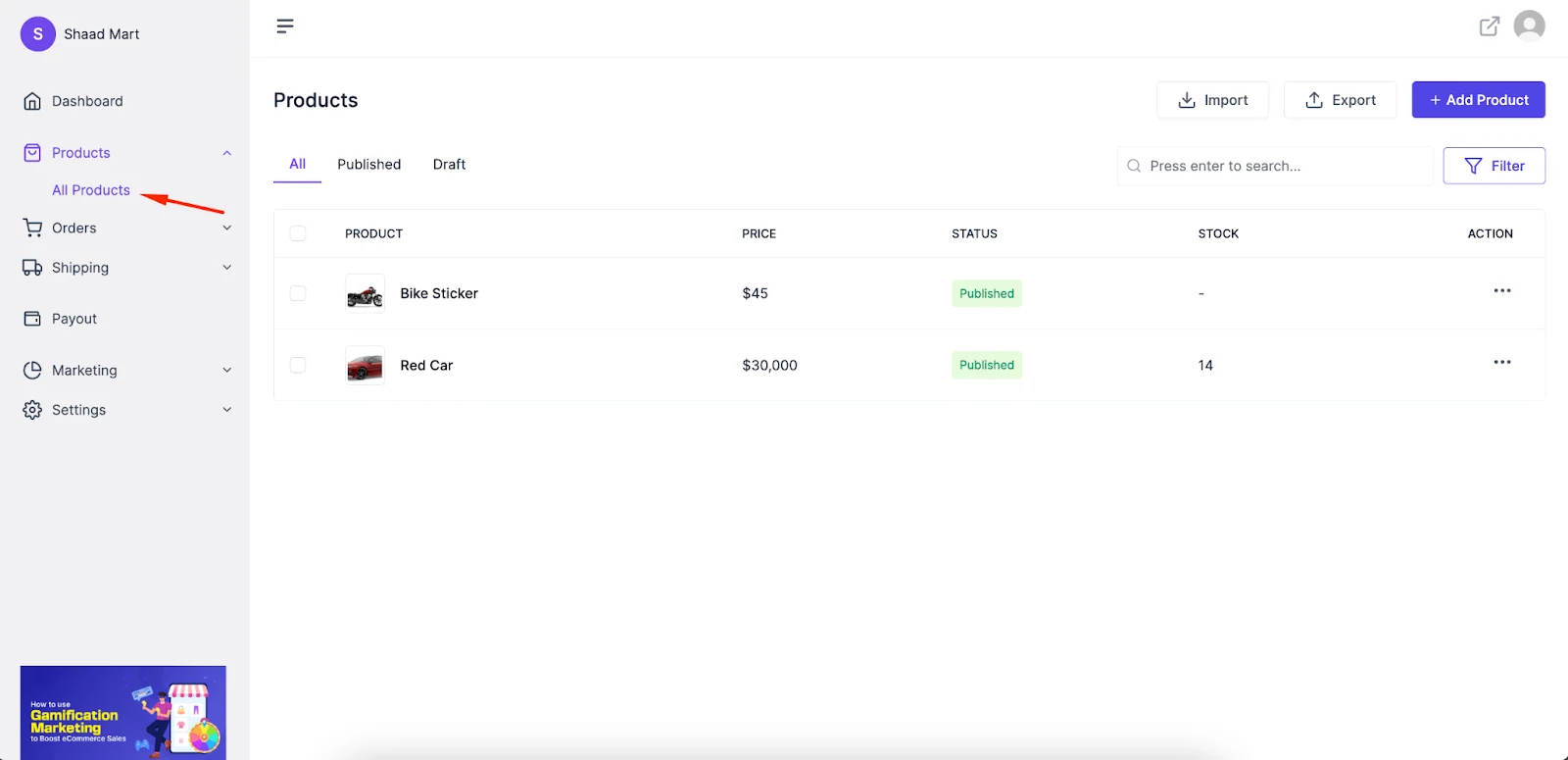
Open All Products, then click Add Product.
- Fill in the product information.
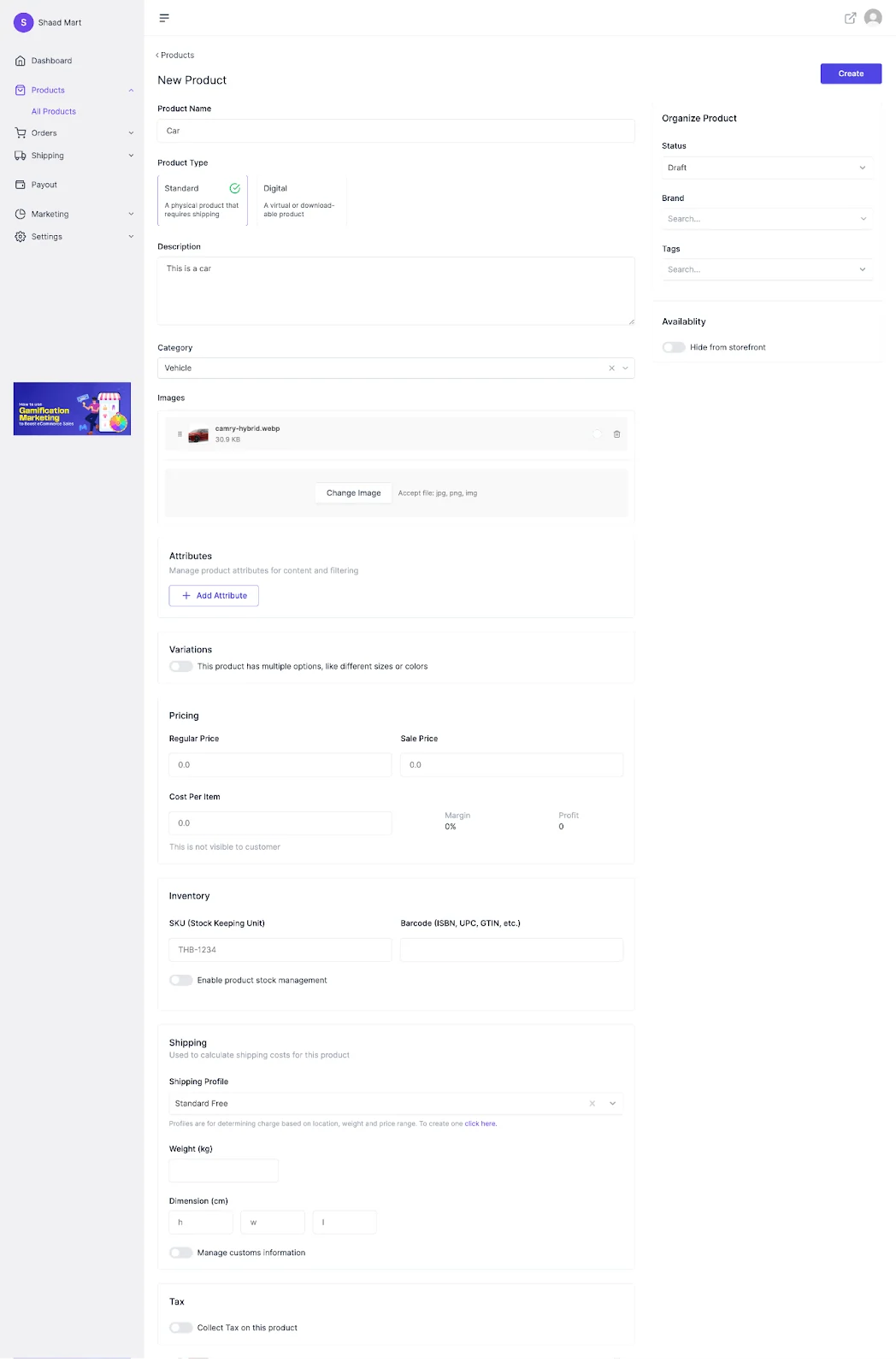
The product form holds the name, type, pricing, inventory, and organization fields.
- Product Name: use a name that clearly describes the product.
- Product Type: choose Standard for a physical product that requires shipping, or Digital for a virtual or downloadable product. You cannot change the type of an existing product.
- Description: write a detailed description. It helps with product SEO.
- Category: choose the category that fits the product.
- Images: upload one or more product images.
- Pricing: enter a Regular Price and, if needed, a Sale Price. Cost Per Item is not visible to customers.
- Inventory: shown for Standard products only. See the inventory section below.
- Attributes: add attributes, such as colors or sizes, if your product has them.
- Tax: turn on Collect Tax on this product if the product is taxable.
- Status: publish the product right away or keep it as a draft.
- Brand: choose a brand from the dropdown. Create the brand first so it appears in the list.
- Tags: type a tag and press Enter to add it.
- Sold By shows the vendor the product belongs to.
- Availability: turn on Hide from storefront to keep the product off the storefront.
After you finish, click Update to save the product.
Physical products
Section titled “Physical products”Standard products require shipping. For the shipping rules that apply to them, see Set up shipping zones and rates.
Set inventory and backorders
Section titled “Set inventory and backorders”Inventory settings appear for Standard products only.
- Turn on Enable product stock management.
- Enter the SKU and Barcode (such as an ISBN, UPC, or GTIN), then enter the Stock Quantity and Low stock threshold.
- Set Allow Backorders to decide whether customers can buy the product after stock runs out.
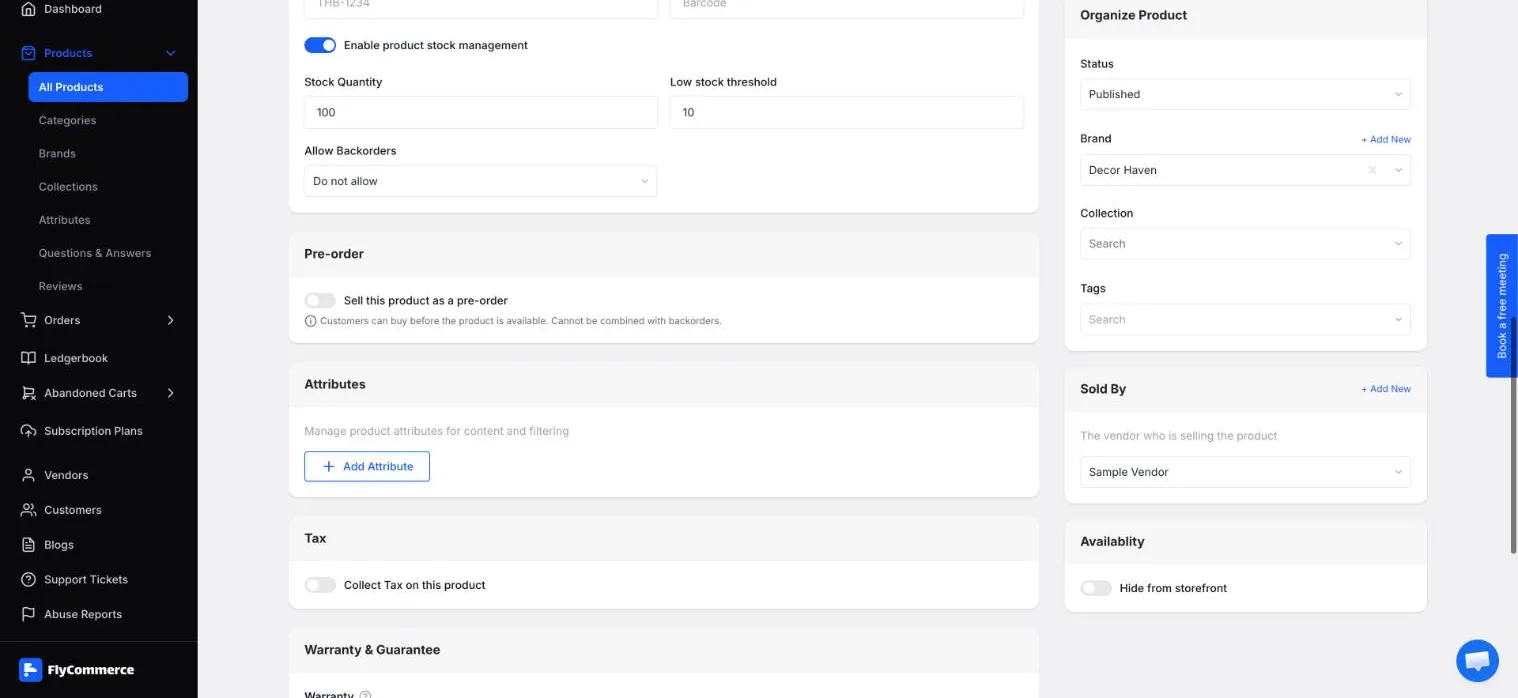
Inventory settings control stock tracking and backorders for Standard products.
The product page shows a stock badge, such as In Stock, so customers can see availability.
Sell a pre-order
Section titled “Sell a pre-order”Pre-orders let customers buy a product before it is available.
- Turn on Sell this product as a pre-order.
- Leave Allow Backorders disallowed. A pre-order cannot be combined with backorders.
On the storefront, the product page shows a Pre-order button in place of Add to Cart, along with the expected ship date and deposit information.
Digital products
Section titled “Digital products”Choose Digital as the Product Type for a virtual or downloadable product. The Inventory section is not shown for digital products. Use Downloadable Files to let customers download a file after purchase.
- In Downloadable Files, click Add Downloads.
- Choose Secure Storage to upload a private file, or External Link to link to a file hosted elsewhere.
- For Secure Storage, upload the file from your computer. The maximum upload size is 25MB.
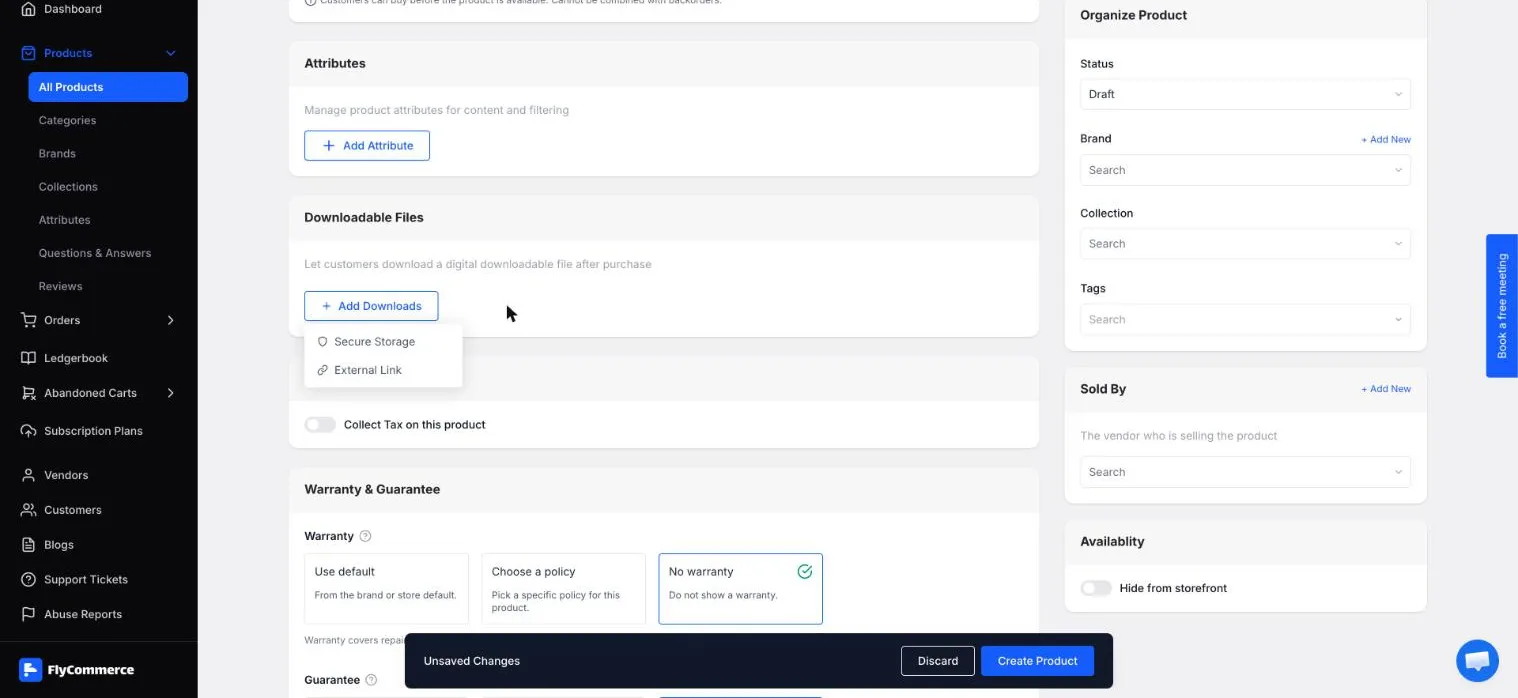
Add the file customers receive after purchase in the Downloadable Files section.
For how digital files are delivered after purchase, see Digital product delivery.
Check the storefront
Section titled “Check the storefront”Published products appear on the storefront. Open the product page to confirm the price, stock status, and any pre-order details.
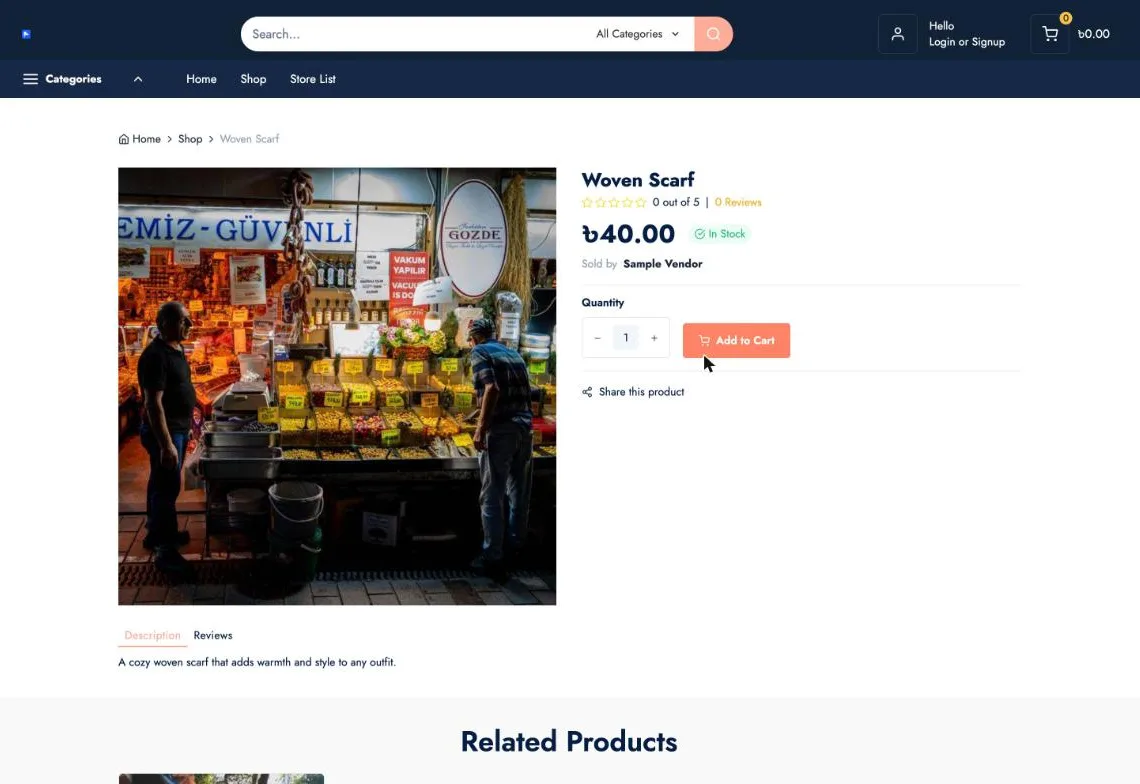
A product page on the storefront. Pre-order products show a Pre-order button instead of Add to Cart.
Edit a product
Section titled “Edit a product”- Go to Products → All Products and find the product.
- Click Edit to change the product details.
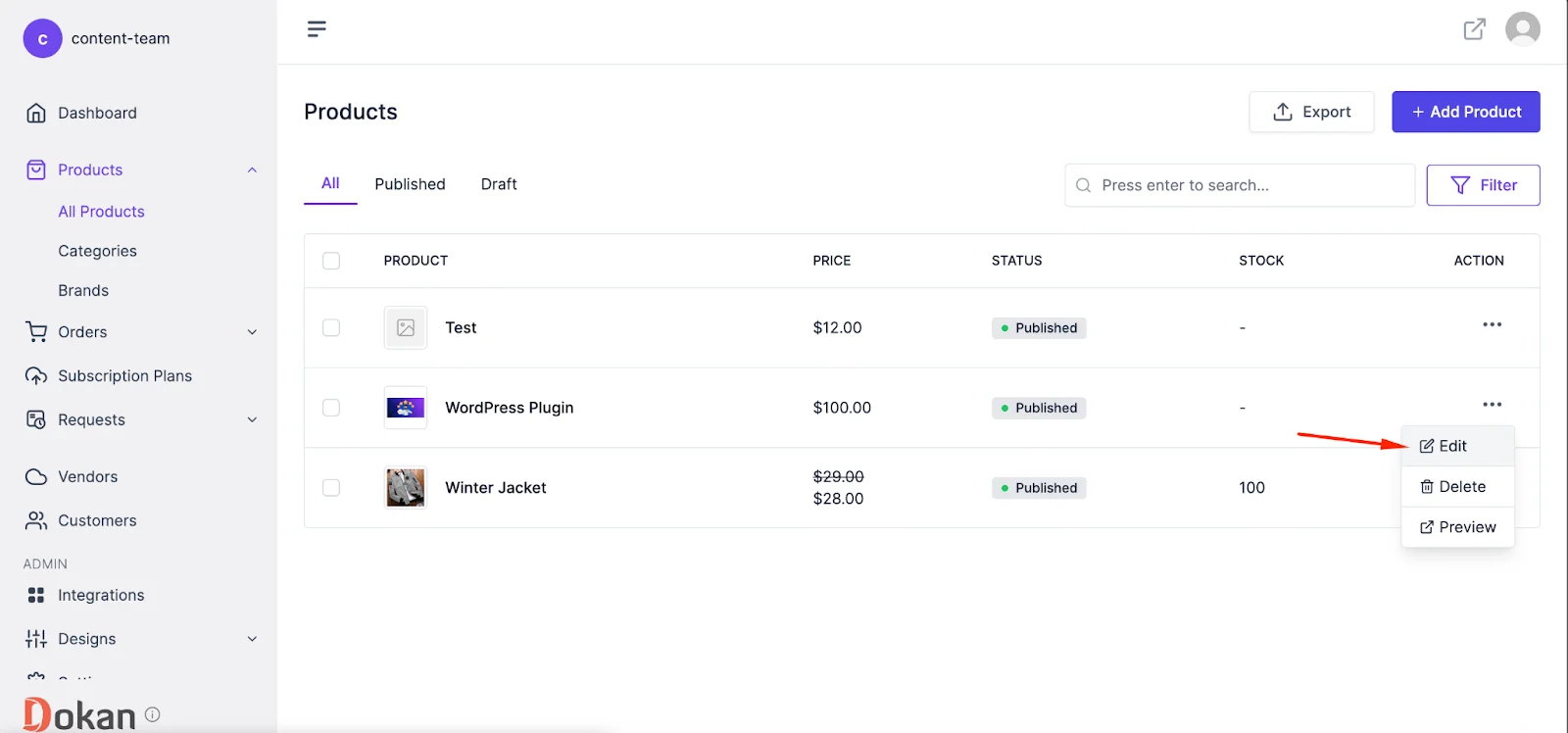
Click Edit to change an existing product.
The product type cannot be changed on an existing product.