Configure shipping for digital products
Digital products are virtual or downloadable items that do not require shipping. Store owners and vendors choose the product type when they create a product, and the form then shows only the sections that apply to that type. This guide explains when to choose Digital and what to check when a cart mixes digital and physical items.
Choose a product type
Section titled “Choose a product type”The product form offers two product types:
- Standard is a physical product that requires shipping. Use it for items you pack and send.
- Digital is a virtual or downloadable product. Use it for items the customer receives as a file or other download.
Choose the type before you save the product. The Product Type cannot be changed on an existing product, because the option is disabled when you edit it.
- Go to Products → All Products and select Add Products.
- Under Product Type, select Digital.
- Enter the Regular Price and other product details.
- Save the product when you finish.
For a digital product, the Inventory section does not appear, so stock settings such as Stock Quantity and Allow Backorders do not apply. For more on stock behavior, see Inventory and stock alerts.
Attach the downloadable file
Section titled “Attach the downloadable file”After you select Digital, add the file in the Downloadable Files section. This section lets customers download a digital file after purchase.
- In the product form, find Downloadable Files and select Add Downloads.
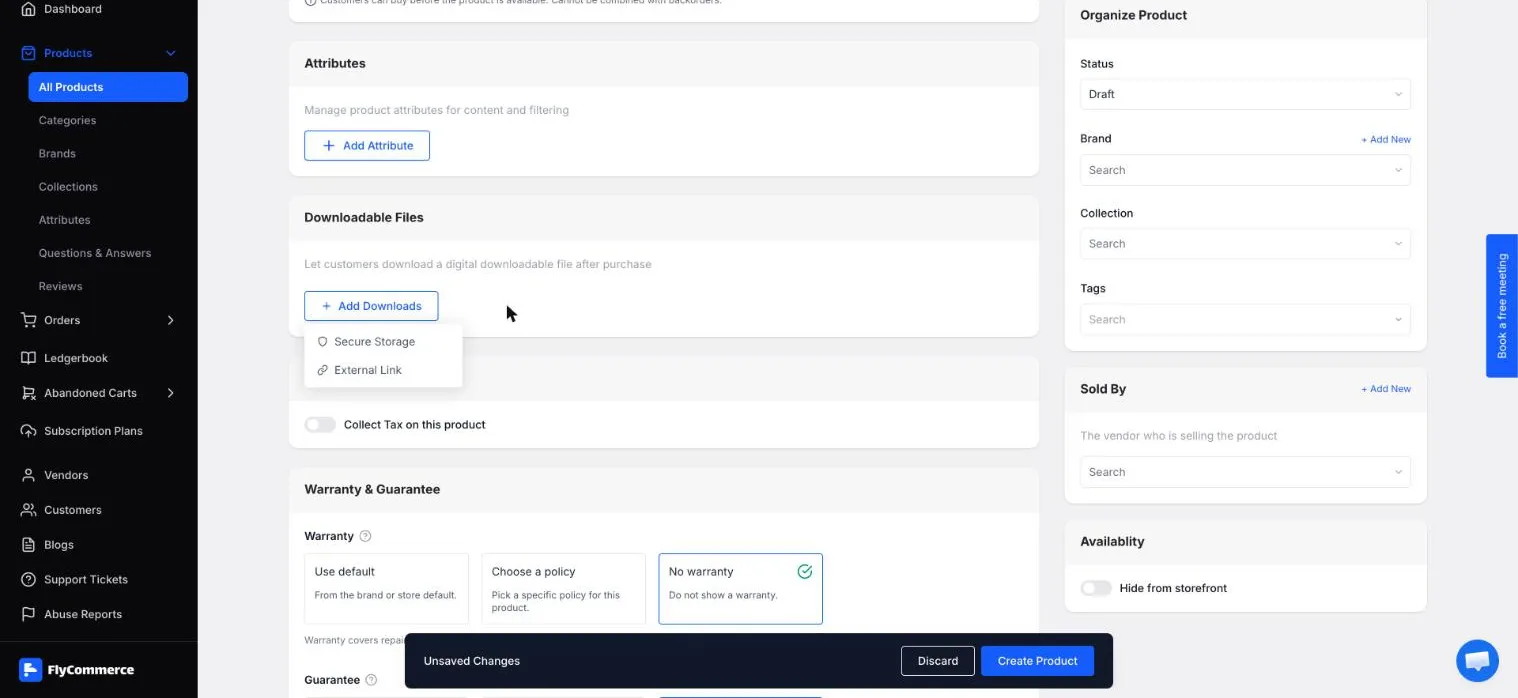
Digital products show Downloadable Files in place of the Inventory section.
- Choose Secure Storage to upload a private file, or External Link to point to a file hosted elsewhere.
- If you choose Secure Storage, the Insert Media dialog opens, marked Private. Select Upload File and choose a file from Local Computer, or pick an existing file from the Media Library. The maximum upload size is 25MB.
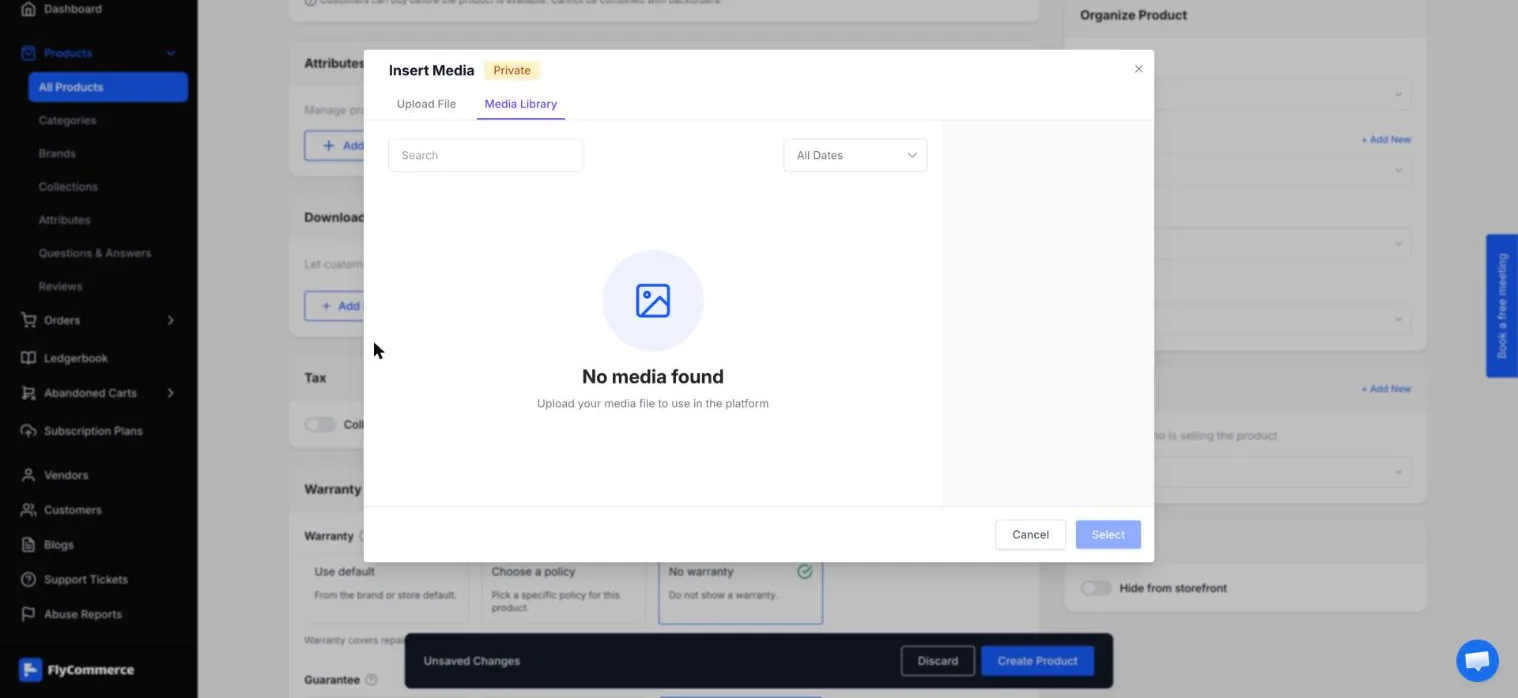
Secure Storage opens the Insert Media dialog, marked Private, for uploading your file.
Shipping and mixed carts
Section titled “Shipping and mixed carts”Standard products are shipped according to your shipping settings. To configure rates for physical items, see Set up shipping zones and rates.
Check before you launch
Section titled “Check before you launch”- Confirm each product’s Product Type matches whether it needs shipping.
- For each digital product, confirm a file is attached under Downloadable Files.
- Enable the Test Gateway under Settings → Payment and place a test order for each digital product. Use the card number
4242 4242 4242 4242. - Review the Order Summary for a mixed cart and confirm the shipping charge matches your settings.
Customers can only complete checkout once at least one payment method is connected, so make sure a payment method is active before you test.