Create Product Brands
Use product brands to group products by the company or label customers recognize. Add a brand before assigning it to products.
Create a brand
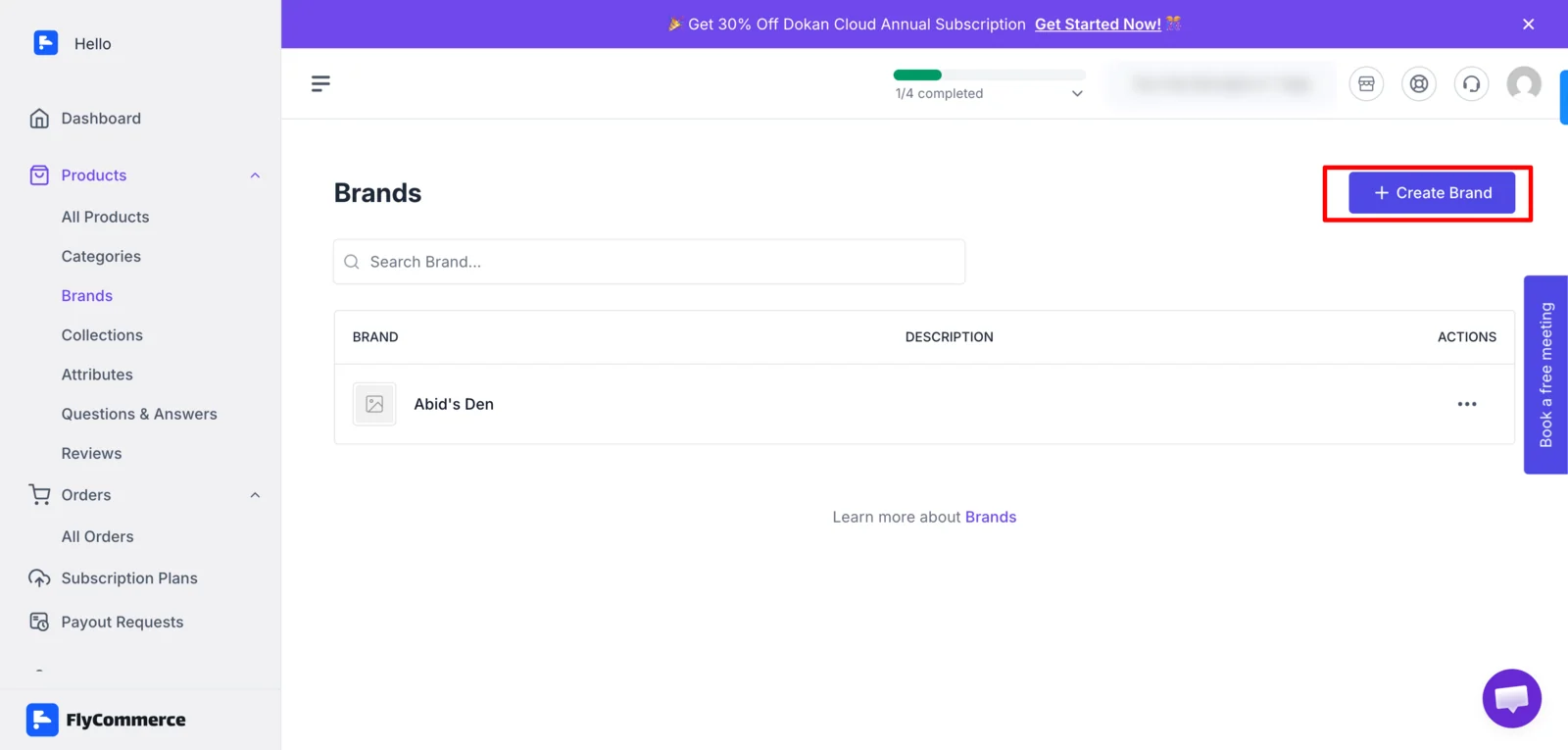
Section titled “Create a brand”- In the dashboard, open Products → Brands.
- Select New Brand.
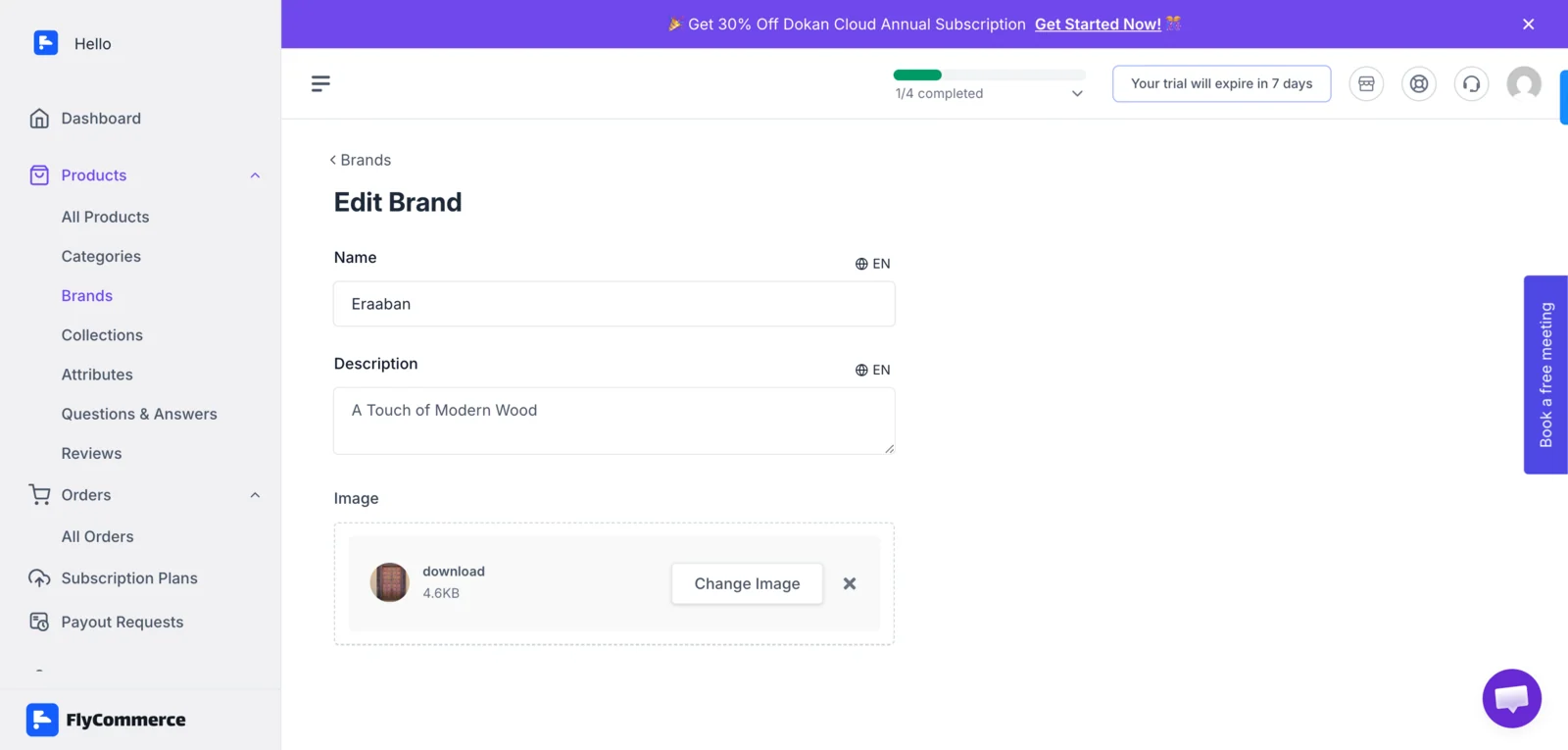
- Enter a recognizable brand name and a short description.
- Add a brand image if you have one.
- Select Save.
Assign a brand to a product
Section titled “Assign a brand to a product”- Open Products and select the product you want to update.
- Find the Brand field and choose the brand you created.
- Save the product.
- Open the product page in your storefront to confirm the brand appears as expected.
Edit or delete a brand
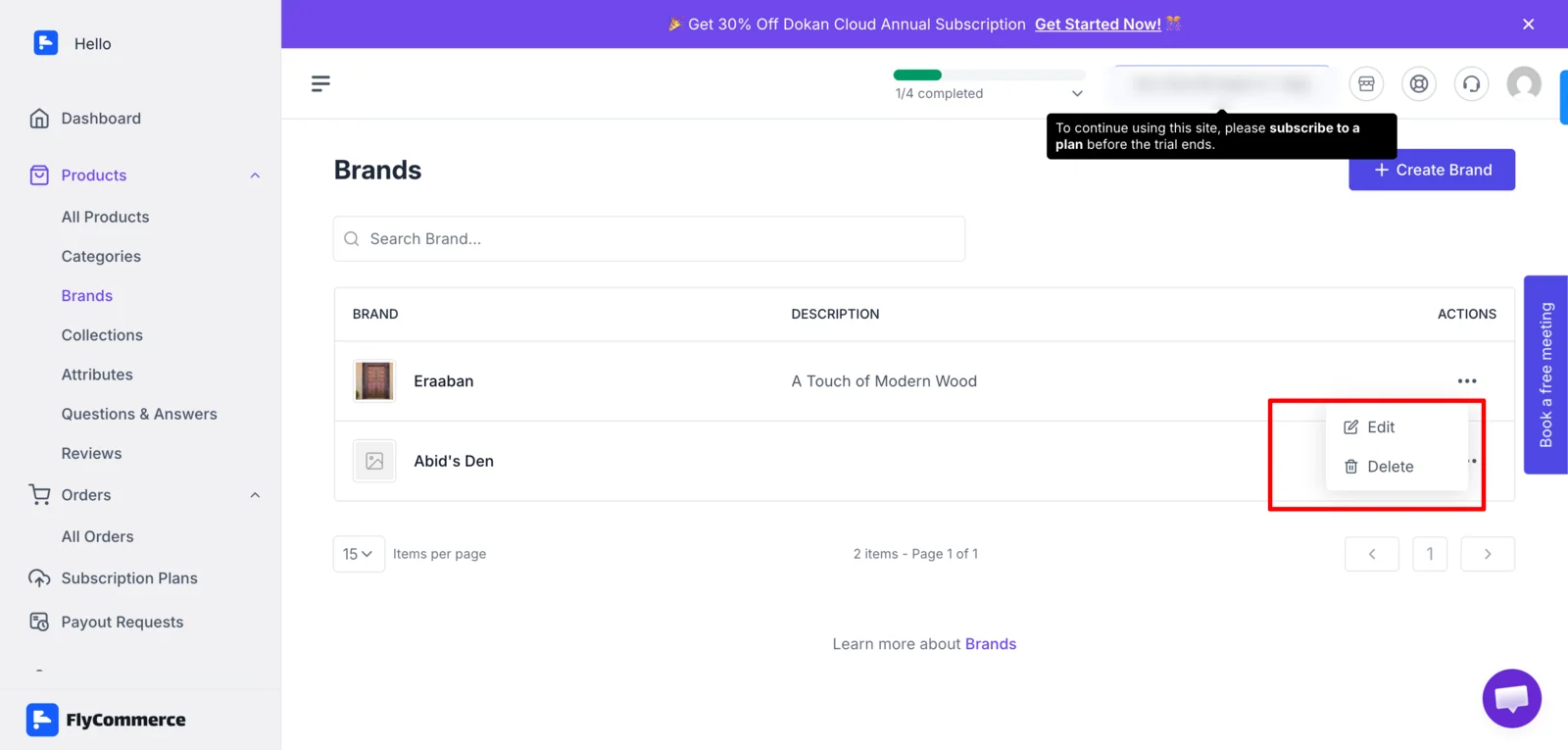
Section titled “Edit or delete a brand”- Return to Products → Brands.
- Open the brand’s action menu.
- Choose Edit to update its details, or Delete to remove it.
- If products are assigned to the brand, check their product pages after deletion and assign another brand when appropriate.