Create a product collection
A collection groups related products, such as “Winter Essentials” or “Best Sellers,” so customers can find them faster. Store owners and marketplace admins create collections in FlyCommerce, then place them on the storefront with page builder blocks.
Open the collection form
Section titled “Open the collection form”- Go to Products → Collections.
- Select Create Collection.
- Enter a Name and a Description for the collection.
Choose a collection type
Section titled “Choose a collection type”Under Collection Type, choose one of two options:
- Manual: Hand-pick the products in this collection by searching for and selecting them.
- Automatic: Products are added automatically by matching rules that you set.
Use Manual for a curated set of products that you pick yourself, such as a hand-selected gift guide. Use Automatic when the collection should follow a rule, such as every product in one category, so new products that match the rule are included without extra steps.
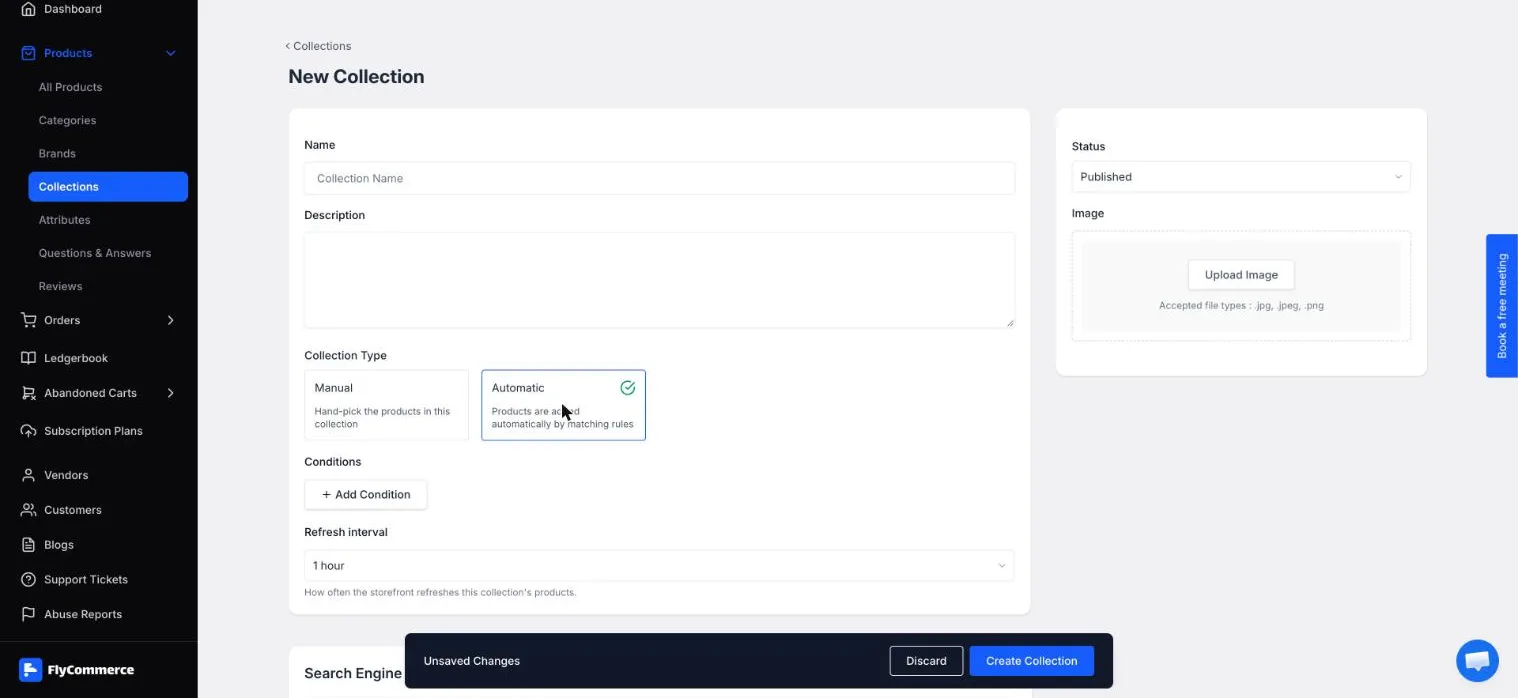
Choose Automatic to add products by rules instead of selecting each one.
Build automatic rules
Section titled “Build automatic rules”After you select Automatic, the Conditions section appears. Add one or more conditions:
- Select Add Condition.
- Choose a field: Product title, Product type, Product category, Product vendor, Price, Sale price, Discount amount, Inventory stock, Product rating, Sell count, or Creation date.
- Choose an operator. Text fields offer is equal to, is not equal to, starts with, ends with, contains, and does not contain.
- Enter a Value. For example, set Product category to is equal to and enter Home Decor.
- To remove a condition, select the trash icon next to it.
When you add two or more conditions, choose how they combine under Products must match:
- All conditions: Products must match every condition.
- Any condition: Products can match any one of the conditions.
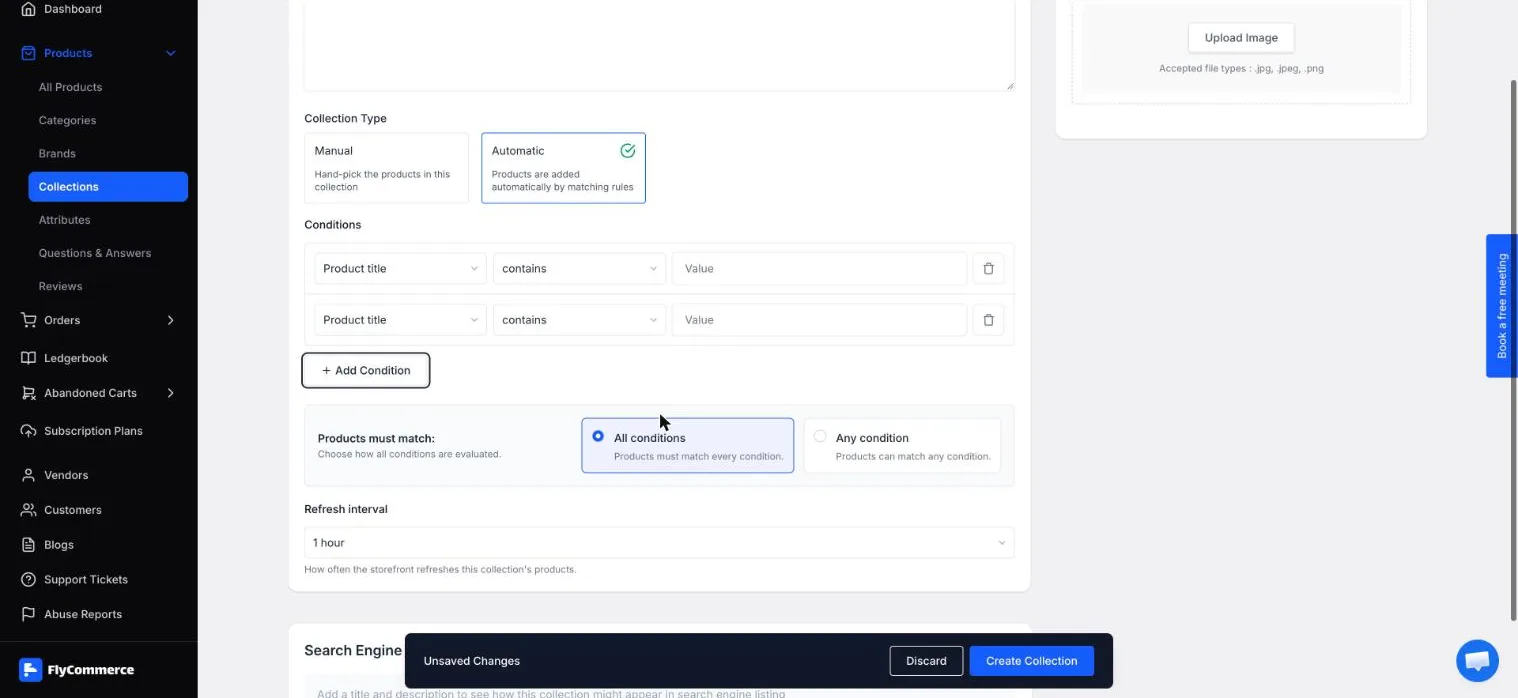
With All conditions selected, a product must match every rule to join the collection.
Choose the match setting based on how narrow the collection should be. All conditions gives a tighter collection. For example, a product must belong to a category and come from a specific vendor. Any condition gives a broader collection, so a product that matches any one rule is included.
Set the refresh interval and publish
Section titled “Set the refresh interval and publish”- Set the Refresh interval, for example 1 hour. This controls how often the storefront refreshes the collection’s products.
- Keep Status set to Published.
- Under Image, upload a .jpg, .jpeg, or .png file.
- Review the SEO section.
- Select Create Collection to save.
Automatic collections update their product list at each refresh, so choose a shorter interval if your catalog changes often, such as during a sale. Manual collections include only the products you selected.
Show the collection on your storefront
Section titled “Show the collection on your storefront”To display collections on a page, add the Collection Grid block from the Ecommerce group in the page builder. For layout options, see the shop page guide or customize your home page.