Page Builder overview
FlyCommerce Page Builder lets you create and customize storefront pages without writing code. Use its visual editor to arrange content, adjust the design, and preview changes before publishing.
What you can build
Section titled “What you can build”Depending on the templates and features enabled for your store, you can customize pages and reusable storefront areas such as the home page, shop, product pages, and header or footer. The editor includes content blocks and product-focused widgets. Available options may vary by page and template.
FlyCommerce also offers AI-assisted page creation. The AI Page Builder can generate a starting layout and content blocks; review and edit the result before publishing it to your storefront.
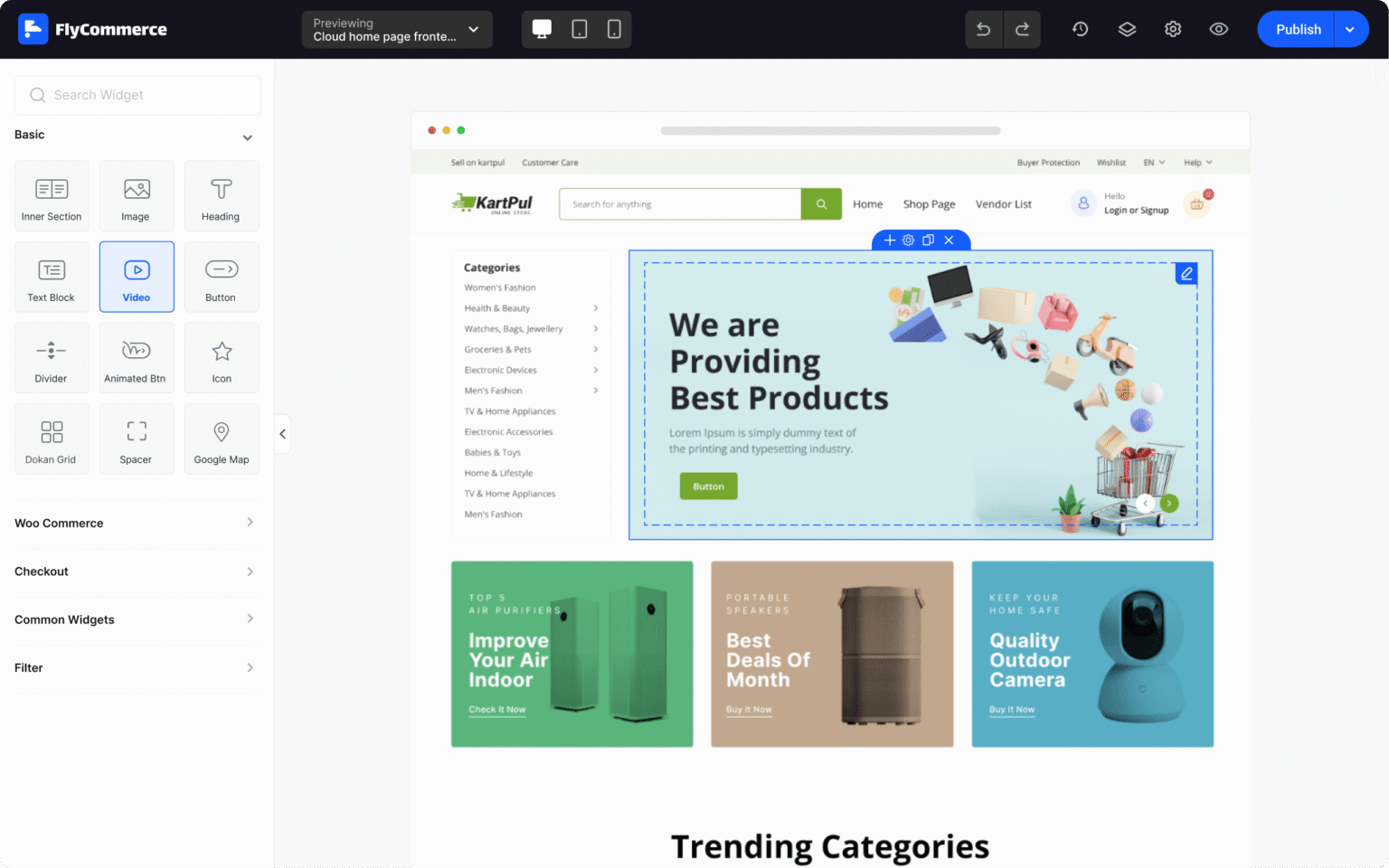
The editor provides a widget panel, page canvas, device previews, and publishing controls.
Open the Page Builder
Section titled “Open the Page Builder”- Sign in to your FlyCommerce dashboard.
- Open the area for designing or customizing your storefront and choose the page or template you want to edit.
- Open it in the visual editor. The exact menu label can vary as the dashboard evolves.
If you do not see the builder or a page template, check that your account has permission to manage the storefront and that the feature is available for your store.
Edit and preview a page
Section titled “Edit and preview a page”- Select an existing section or add a content block or widget from the editor.
- Arrange items in the page layout, then adjust the selected item’s content and appearance using the controls shown in the editor.
- Check the desktop and mobile previews. Confirm text, images, links, and product content are correct at each size.
- Save or publish using the action shown in the editor. Preview the live storefront afterward to confirm the change.
The available controls depend on the selected block or template. Avoid adding custom code unless you can review and maintain it safely.
Use AI-assisted setup
Section titled “Use AI-assisted setup”If AI page creation is available, provide a clear description of the page and the business it should represent. Treat the generated page as a draft: verify product details, claims, images, links, and mobile layout, then edit and preview it before publishing.
For page-specific instructions, see Customize the home page, Shop Page, and Single Product.