Customize the shop page
Store owners and marketplace admins use the page builder to customize the shop page, the storefront page where customers browse and filter products. The Shop template includes filters for price, availability, rating, and brand, along with product and collection grids.
Open the Shop template
Section titled “Open the Shop template”- Go to Designs → Themes.
- Select Customize on your current theme card.
- Select the Shop template, then select Edit.
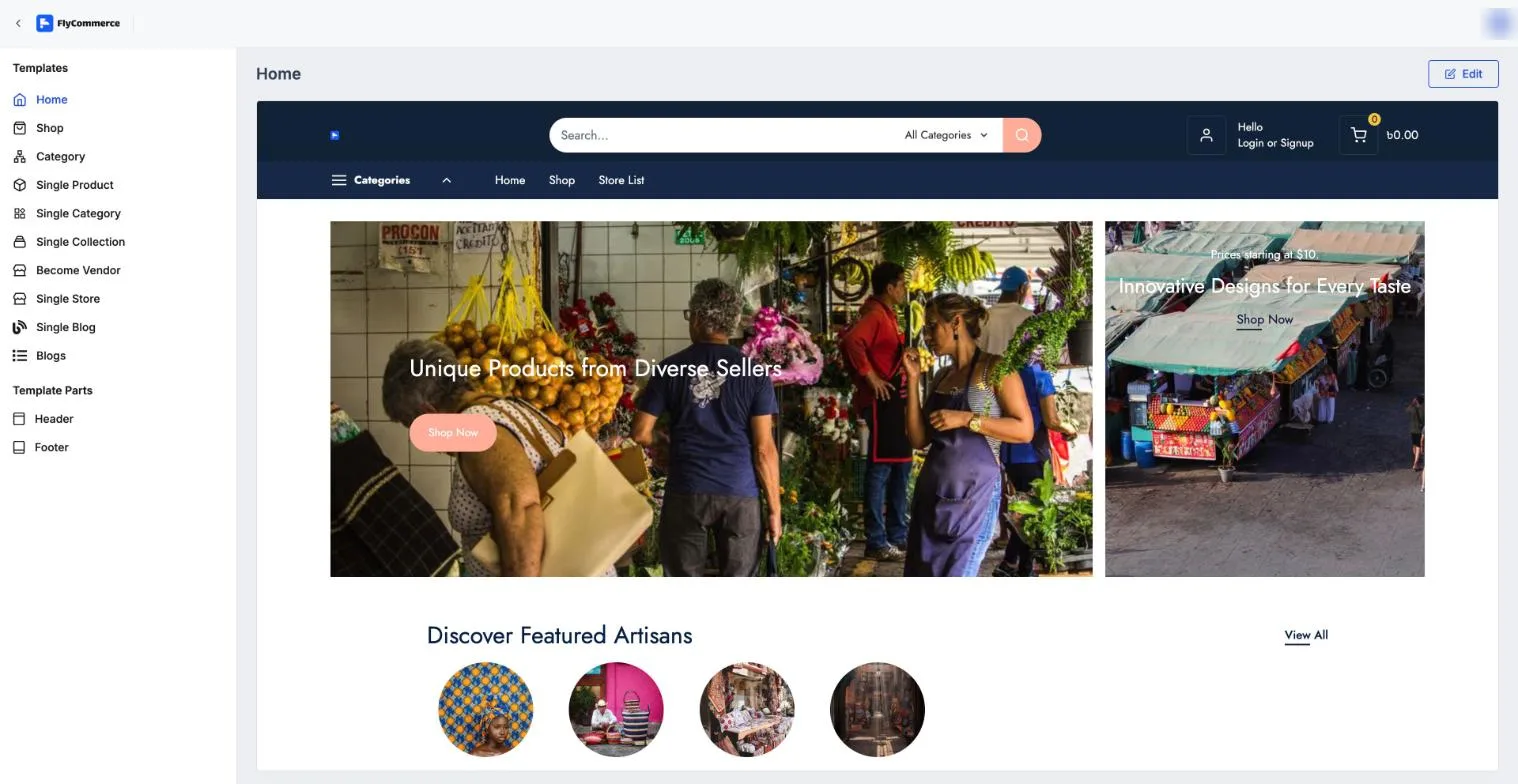
The template list shows each page template you can customize.
Add shop blocks
Section titled “Add shop blocks”The editor’s left INSERT panel has a block search and groups of blocks. Search for a block by name, or browse the groups.
The Template blocks group includes blocks for the shop page:
- Price Filter lets shoppers filter products by a minimum and maximum price.
- Availability Filter lets shoppers filter by In Stock, Out of Stock, or Unmanaged products.
- Rating Filter lets shoppers filter by average rating.
- Brand Filter lets shoppers filter by brand.
- Blog List shows a list of blog posts.
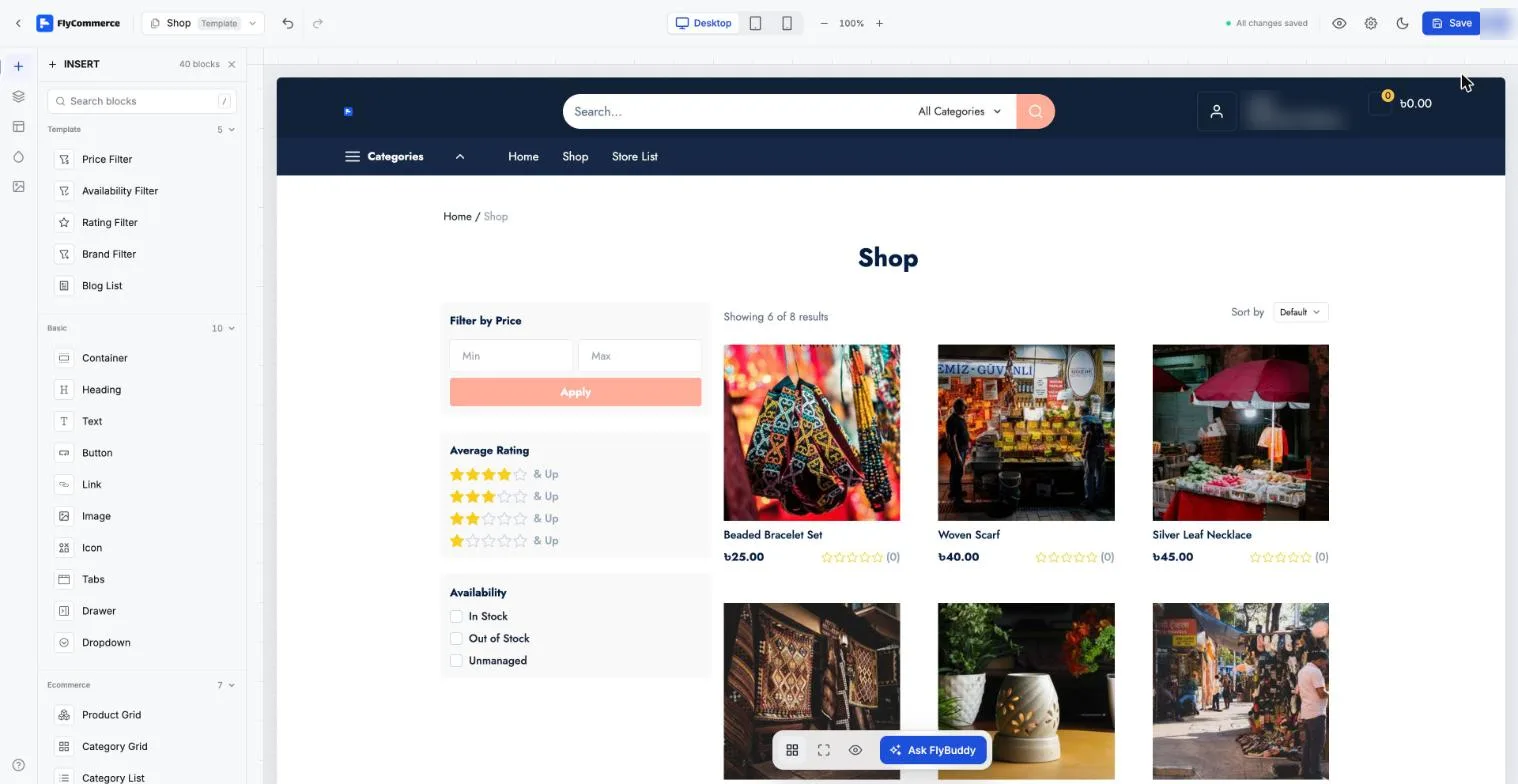
Drag a block from the INSERT panel onto the page to place it.
Add a product grid
Section titled “Add a product grid”The Product Grid block, in the Ecommerce group, displays products in a grid.
- Search for Product Grid in the INSERT panel and drag it onto the page.
- Choose the layout, then set the number of columns and rows.
- Choose which product card elements to show, such as the image, title, price, rating, and add-to-cart button.
On the storefront, shoppers see a Sort by option and a count such as Showing x of y results above the products.
Add a collection grid
Section titled “Add a collection grid”The Collection Grid block, also in the Ecommerce group, shows collections of products.
- Drag Collection Grid onto the page.
- Choose the number of columns and rows.
- Select whether to show all collections or selected collections, then choose whether to show each collection’s image, title, and product count.
Add breadcrumbs and a dropdown menu
Section titled “Add breadcrumbs and a dropdown menu”- The Breadcrumb block, in the Site group, shows shoppers where they are on the site and lets them move back up the path.
- The Dropdown block, in the Basic group, opens a menu when clicked. Add Link blocks inside it to build the menu items.
Save and preview
Section titled “Save and preview”- Use the Desktop, Tablet, and Mobile buttons at the top of the editor to check how the page looks at each size.
- Select Save in the top bar.