Customize the customer account page
Customers can sign in to a store account or check out as guests. FlyCommerce has no customer account template in the page builder, so you manage accounts through checkout settings, the header, notification emails, and the admin Customers page. Store owners and marketplace admins make these changes.
Control account access at checkout
Section titled “Control account access at checkout”In Settings → Checkout, turn Allow Guest Checkout on to let customers check out without creating an account. Customers with an account can select Log In on the contact step of checkout. For the full set of checkout options, see Customize the checkout page.
Add the Auth Box to your header
Section titled “Add the Auth Box to your header”The Auth Box block in the Site group can be added to the Header template part. Use the same steps as in Customize the cart page to add a block to the header.
Review customer emails
Section titled “Review customer emails”Go to Settings → Notification to review the emails customers receive. These include:
- Customer Welcome
- Password Reset
- Order emails, such as Order Placed, Processing Order, Complete Order, and Order Refunded
- Product Q&A
For each email, see Email notifications.
Manage customer records
Section titled “Manage customer records”Open Customers in the admin sidebar. Use the All, Active, and Inactive tabs to filter the list, or search with Search Customers….
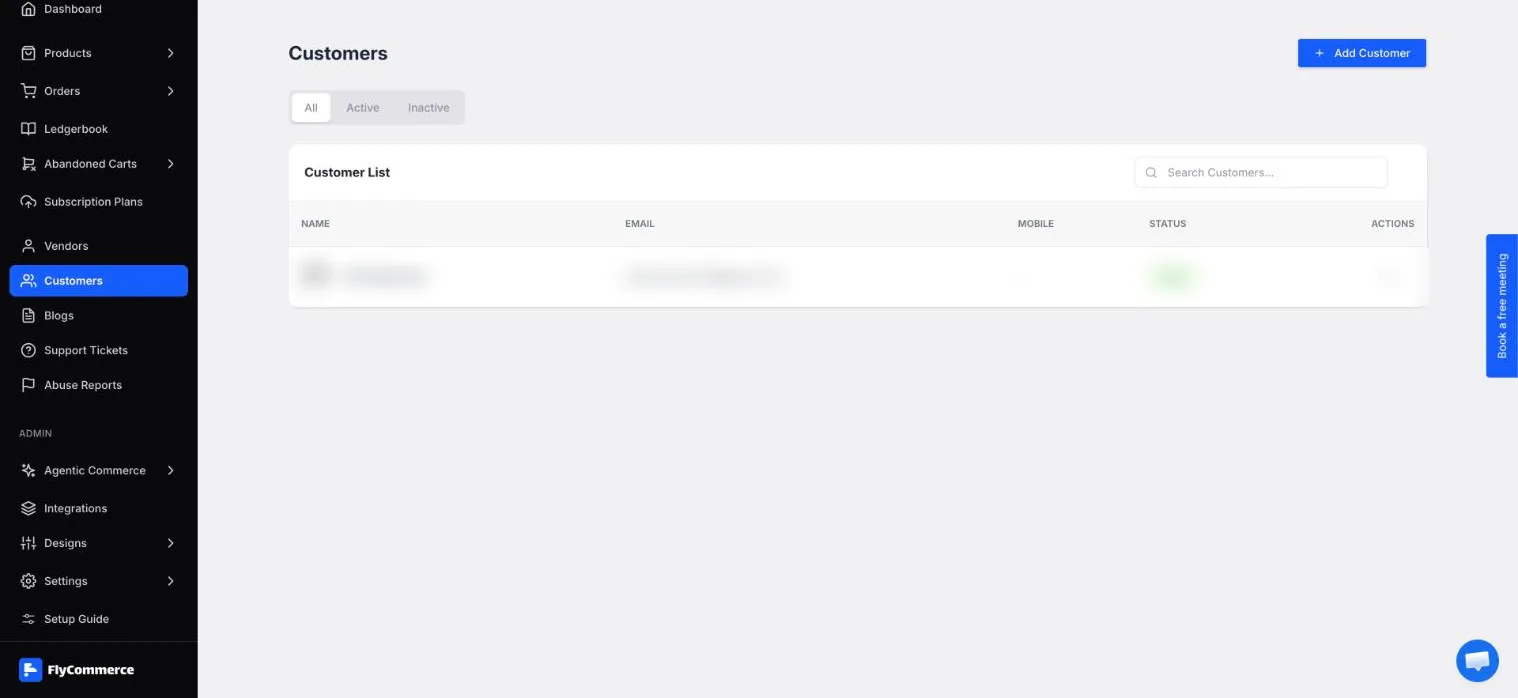
The Customers list shows each account’s name, email, mobile number, and status. Personal data is blurred.
To add a customer, select Add Customer, then enter the first and last name, email, phone, and password. You can select Generate Password to create one.
To open a customer, select their name. The Overview tab shows Total Order, Purchased Items, Average Order Value, and the Latest Order with a View All link. To reset the customer’s password, select Reset. Admins can manage a customer’s password this way.
Manage marketing consent
Section titled “Manage marketing consent”Customers opt in to email or SMS marketing through the Marketing Options checkboxes at checkout. Turn these options on or off in Settings → Checkout.
Handle returns and refunds
Section titled “Handle returns and refunds”Customers’ return and refund requests are reviewed by admins under Orders → Return Requests and Orders → Resolve Refunds. For the review process, see Admin refunds and returns.