Email Notifications
Use notification settings to choose which event emails FlyCommerce sends. The available notifications depend on whether your account is a Shop or Marketplace.
Update email preferences
Section titled “Update email preferences”- Sign in to the dashboard for the store you want to update.
- Open Settings and select Notification.
- Open the Emails tab.
- Review the Orders, Customer, Admin, and Vendor sections.
- Turn on the email types you want to send and turn off those you do not need.
- Confirm the setting shows the status you intended. The dashboard saves changes as you make them.
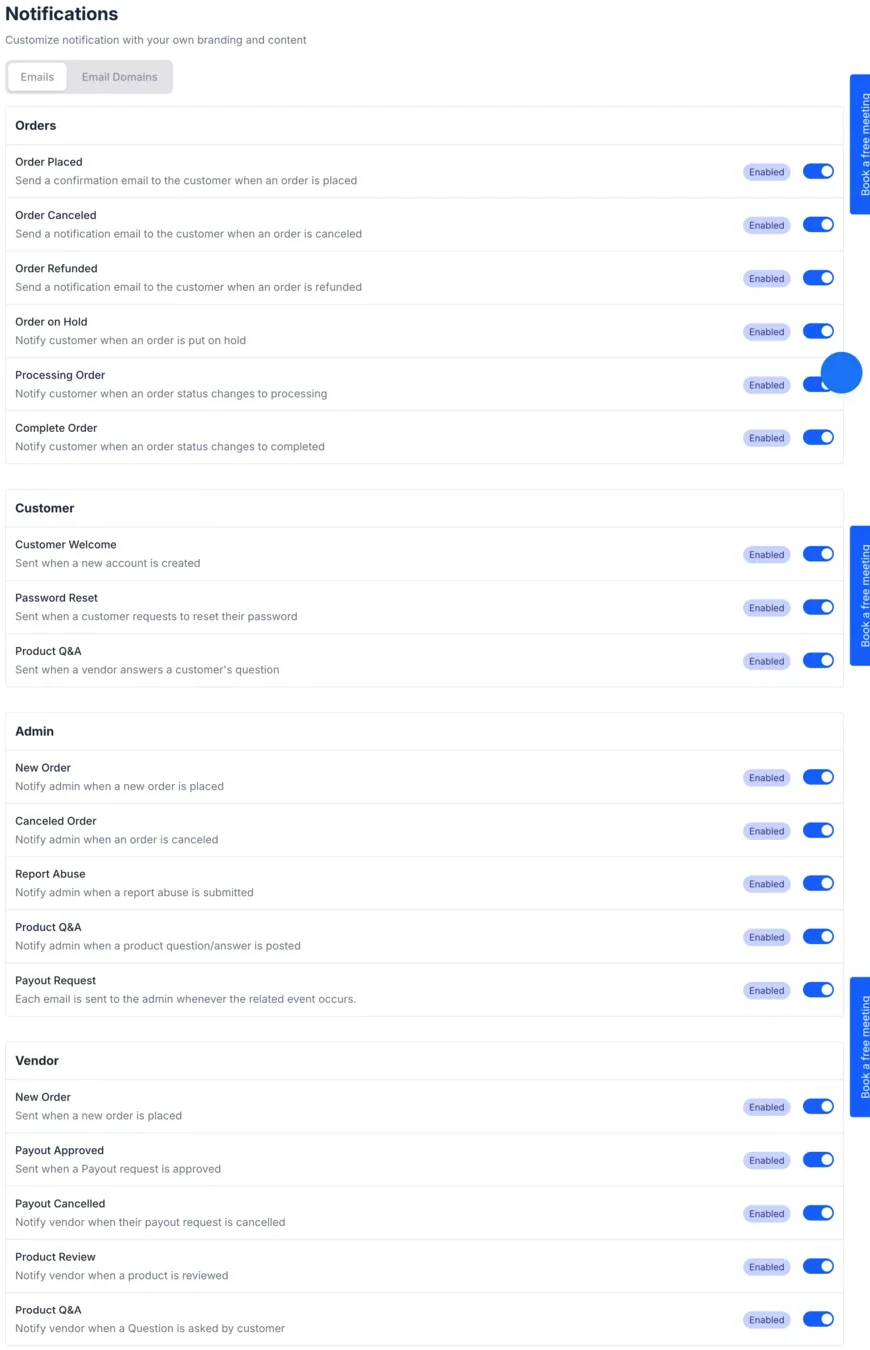
Examples include order placed, canceled, refunded, and completed messages; customer welcome and password reset emails; administrator alerts; and vendor order or payout messages. Read each description in the dashboard before changing a setting so you know who receives the email and when it is sent.
Check whether an email was delivered
Section titled “Check whether an email was delivered”- Confirm the recipient address is correct and can receive mail.
- Check spam or junk folders and any email filtering rules.
- Confirm the notification for that event is enabled.
- Trigger the event with a test order or account when possible.
- If the message still does not arrive, contact support and include the event and approximate time.
Note: In-app alerts in the dashboard notification bell are separate from email preferences. Changing an email toggle does not change the in-app alert settings.