View and manage customers
Use the Customers page to find a shopper, review their order activity, add a customer account, or reset a password when a customer can’t sign in. Store owners and marketplace admins can use these actions from the admin dashboard. You need an administrator account to manage customers.
Find a customer
Section titled “Find a customer”The customer list shows each account’s name, email, mobile number, and status. Use the list to find the customer you need before you open their record.
- Open Customers in the admin sidebar.
- Select All, Active, or Inactive to narrow the list by status.
- Use the Search Customers… field to find the customer you need.
- Select the customer’s name to open their record.
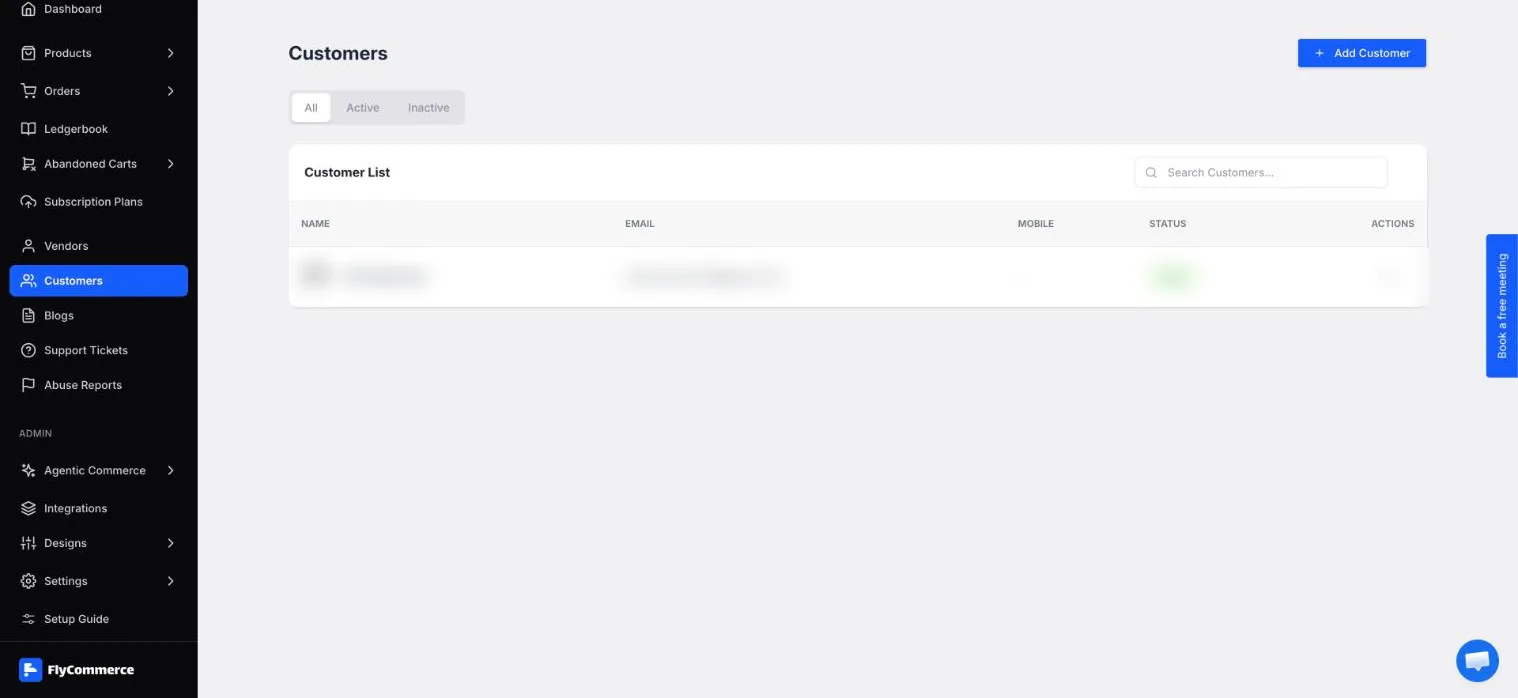
The Customers list shows each customer’s name, email, mobile number, and status. Personal details are blurred.
Review order history
Section titled “Review order history”The customer record opens with the customer’s name and a status badge. The Overview tab summarizes account activity:
- Total Order shows how many orders the customer has placed.
- Purchased Items shows the items the customer has bought.
- Average Order Value shows the average amount per order.
- Latest Order shows the most recent order.
To review the customer’s orders:
- Open the customer’s record.
- On the Overview tab, select View All next to Latest Order.
Add a customer
Section titled “Add a customer”- Select Add Customer on the Customers page.
- Enter the First Name, Last Name, Email, and Phone for the customer.
- Enter a Password and repeat it in Confirm Password. To create a password for the customer, select Generate Password.
- Select Create.
Reset a customer’s password
Section titled “Reset a customer’s password”Admins can manage a customer’s password from the customer’s record. Use this when a customer can’t sign in.
- Open the customer’s record and stay on the Overview tab.
- In the Password row, select Reset.
If a customer has trouble signing in for other reasons, check the steps in Common issues and how to resolve them.