Connect Google Analytics 4
Connect Google Analytics 4 (GA4) to your FlyCommerce store or marketplace to measure visitor activity on your storefront. This guide is for store owners and marketplace admins. You need a GA4 property and permission to open its admin settings.
Get your Measurement ID
Section titled “Get your Measurement ID”Create a web data stream in GA4 for your storefront, then copy its Measurement ID.
- Sign in to Google Analytics and open the Admin area for your GA4 property.
- Under Data collection and modification, select Data streams.
- Select Add stream, then choose Web.
- Enter your storefront URL and select Create and Continue.
- Select the stream and copy its Measurement ID. The ID starts with
G-.
GA4 menu labels can change over time. If a label differs, look for the Data streams list in the property’s admin settings.
Connect the Measurement ID in FlyCommerce
Section titled “Connect the Measurement ID in FlyCommerce”- Sign in to the FlyCommerce admin dashboard and go to Integrations.
- Select Connect on the Google Analytics card.
- On the Analytics Settings page, paste your Measurement ID into Google Analytics Measurement ID. FlyCommerce has one Measurement ID field, so enter the ID of the web stream for your storefront.
- Turn on Enable Analytics. The toggle shows Enabled.
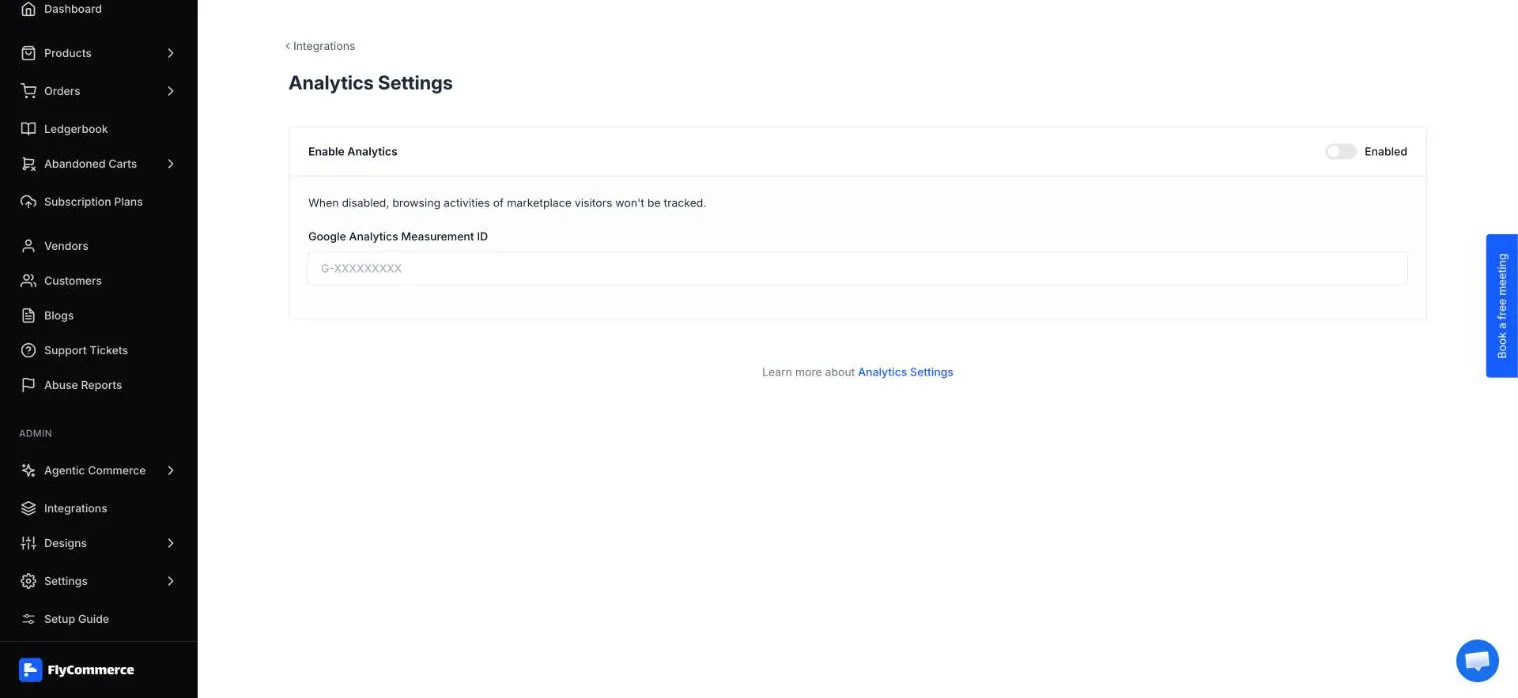
The Analytics Settings page holds your Measurement ID and the Enable Analytics toggle.
Confirm that tracking works
Section titled “Confirm that tracking works”After you connect the ID, check that GA4 receives data from a test visit.
- Open your storefront in a new browser window.
- Browse a few pages. To test shopping activity, add a product to your cart.
- In Google Analytics, open the Realtime report to see your visit. If debug mode is enabled for your site, the DebugView report shows events in more detail.
If your visit does not appear, confirm that Enable Analytics is turned on and that the Measurement ID matches the web data stream you created.
GA4 and the FlyCommerce dashboard
Section titled “GA4 and the FlyCommerce dashboard”GA4 and FlyCommerce report different things. GA4 shows visitor activity in Google’s reports. The Dashboard in FlyCommerce shows your own store figures, including Gross Sales, Net Revenue, and Orders. The Sales by source panel is part of FlyCommerce’s own reporting and is not pulled from GA4.
Use GA4 to understand visitor behavior and the FlyCommerce dashboard to review store sales. Compare trends across both rather than expecting identical totals.
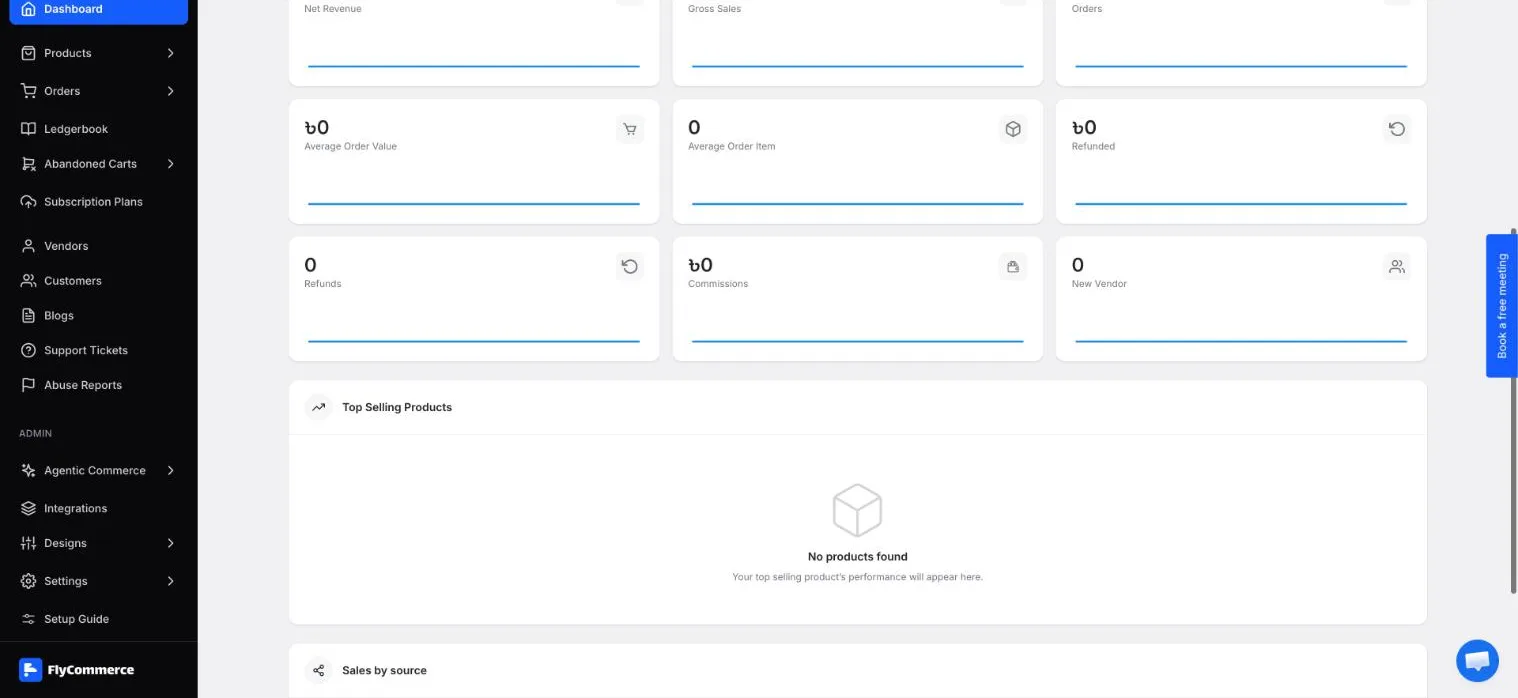
The Report Overview on the Dashboard shows FlyCommerce’s own sales and order figures for a period.