Manage inventory and stock alerts
Inventory settings control how many units of a physical product you can sell and how shoppers see stock status. Store owners and vendors set these in the product form, and store owners can add stock blocks to the product page in the page builder.
Turn on stock management for a product
Section titled “Turn on stock management for a product”Inventory settings apply to Standard products only. Digital products don’t show an Inventory section.
- Go to Products → All Products and open the product, or click Add Products for a new one.
- Confirm that Product Type is set to Standard (“A physical product that requires shipping”).
- In the Inventory section, enter a SKU and Barcode if you use them. The barcode field accepts ISBN, UPC, GTIN, and similar codes.
- Turn on Enable product stock management.
- Enter a Stock Quantity.
- Enter a Low stock threshold for the level at which you want to be warned that stock is running low.
- Save the product.
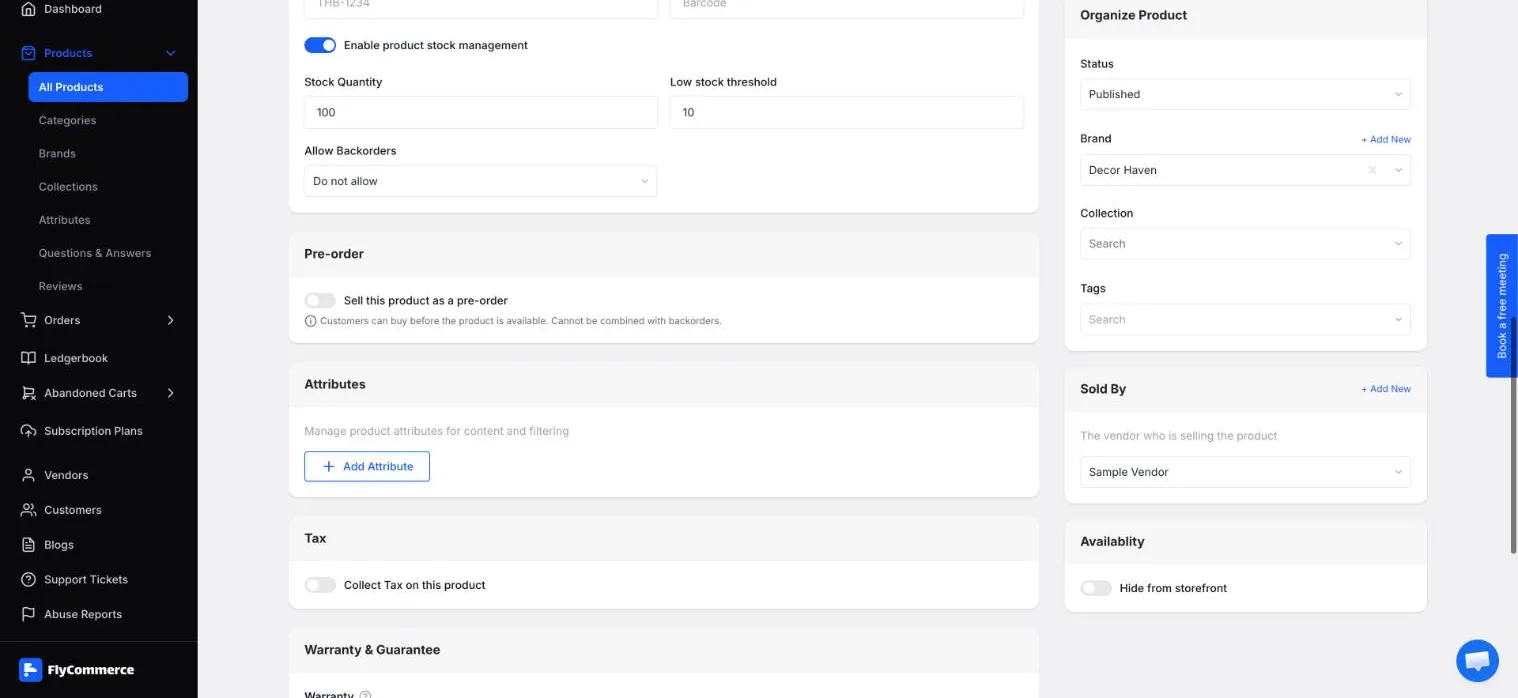
The Inventory section of a Standard product holds the stock quantity and low-stock threshold.
Set backorders and pre-orders
Section titled “Set backorders and pre-orders”- Allow Backorders decides whether customers can order a product when its stock runs out.
- Pre-order lets customers buy a product before it is available. The product form states that pre-orders can’t be combined with backorders, so turn on only one of the two for a product.
Review stock in the product list
Section titled “Review stock in the product list”The STOCK column in Products → All Products shows each product’s stock, for example “100 in Stock”. Use the Published, Draft, Pending, and On Hold tabs to filter products by status.
Show stock status to shoppers
Section titled “Show stock status to shoppers”Shoppers see a stock badge on the product page, such as In Stock. On the shop page, they can filter products by Availability: In Stock, Out of Stock, or Unmanaged.
To show stock details on the product page, add the stock blocks to the Single Product template.
- Go to Designs → Themes, click Customize on your current theme, then select the Single Product template and click Edit.
- In the INSERT panel, under Template blocks, drag Stock Status and Product Stock Quantity to where you want them on the page.
- To offer a back-in-stock option, drag Back in Stock Notify onto the page.
- Click Save.
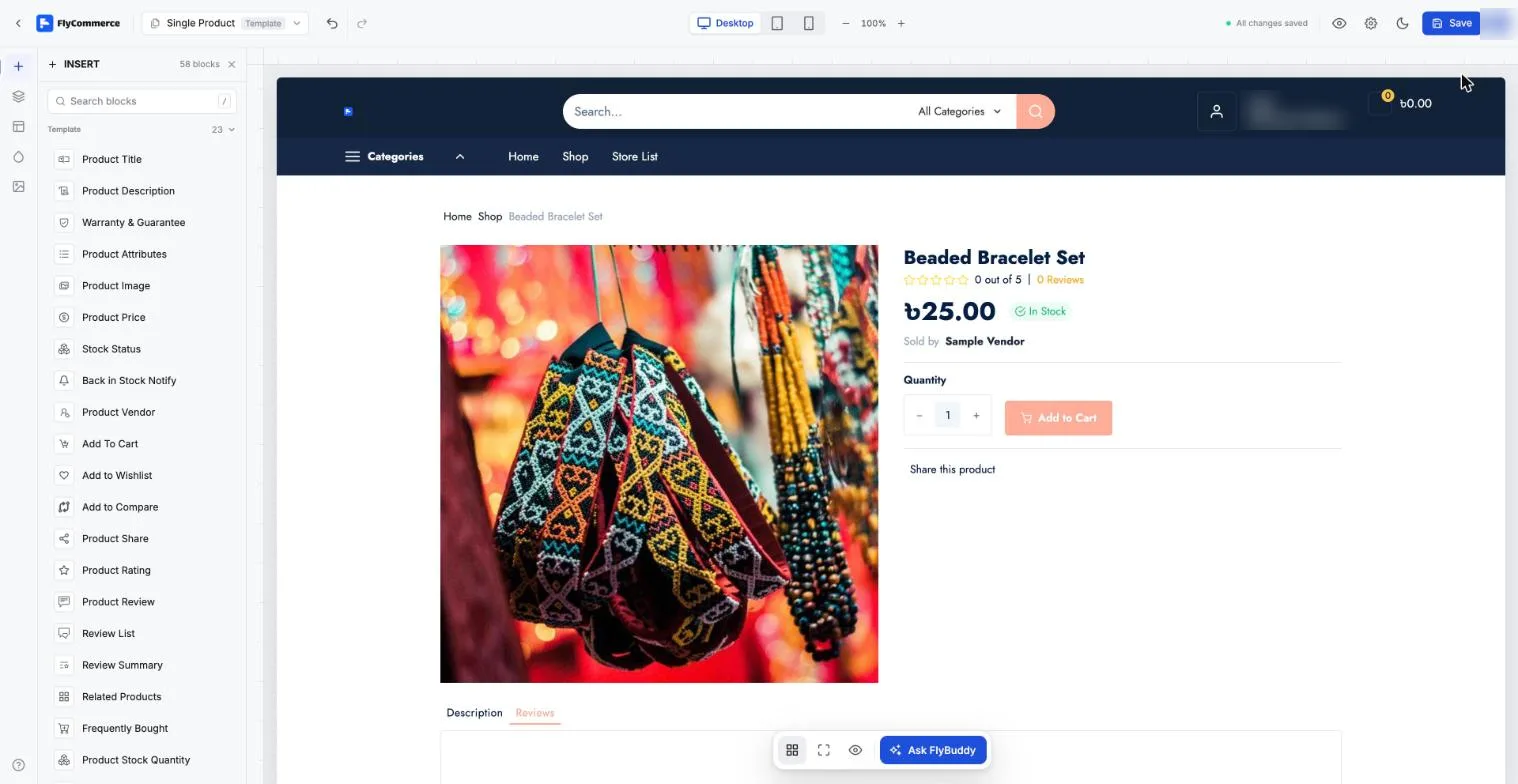
The Single Product template editor, with stock blocks available in the INSERT panel.