Manage orders as an admin
The Orders section of the FlyCommerce admin dashboard lists every customer order and includes pages for invoices, pre-orders, refunds, and return requests. Store owners and marketplace admins use these pages to check payment and fulfillment status and to work through refund and return requests. The same steps apply to Shop and Marketplace stores.
Orders section overview
Section titled “Orders section overview”The Orders section in the sidebar contains five pages.
| Page | Use it to |
|---|---|
| All Orders | Find and review orders by status. |
| Invoices | Review invoices and credit notes and check their send status. |
| Pre-orders | Review orders placed for pre-order products. |
| Resolve Refunds | Work through refund requests that need a decision. |
| Return Requests | Review customer return requests by status. |
Find orders in All Orders
Section titled “Find orders in All Orders”- Go to Orders → All Orders.
- Select a status tab to filter the Order List. The All tab shows every order.
- To find a specific order, type an order ID or customer name in the search field, then press Enter.
- Click an order row to open its details.
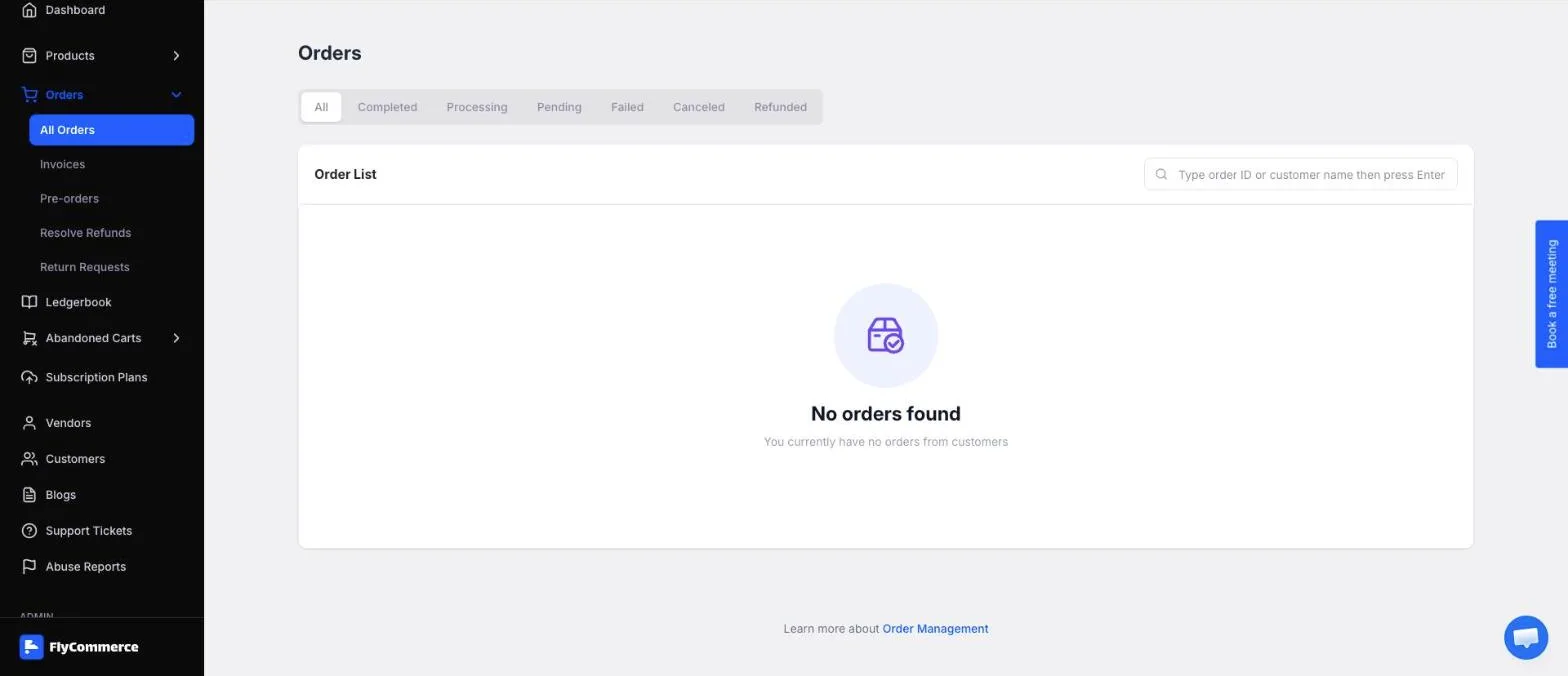
The All Orders page lists orders by status and includes search by order ID or customer name.
If the store has no orders yet, the Order List shows “No orders found — You currently have no orders from customers.”
Order status tabs
Section titled “Order status tabs”Each tab filters the Order List by status. The definitions below are general. Check the order details for the exact state of a specific order.
| Tab | What it typically means |
|---|---|
| All | Every order, regardless of status. |
| Pending | The order has been placed but not yet paid or confirmed. |
| Processing | The order has been paid and is being prepared or fulfilled. |
| Completed | The order has been fulfilled. |
| Failed | The payment did not go through. |
| Canceled | The order was canceled. |
| Refunded | The order has been refunded. |
Manage invoices
Section titled “Manage invoices”- Go to Orders → Invoices.
- Select the Invoices tab or the Credit Notes tab.
- Filter the list by status (All, Sent, Not Sent, Failed, or Voided) and by date (All time).
- Select Export to export the records.
Invoices are generated automatically based on your invoicing settings. You configure those settings under Settings → Invoicing.
Review pre-orders
Section titled “Review pre-orders”Go to Orders → Pre-orders to see orders placed for pre-order products. This page uses the same status tabs as All Orders, so you can review pre-orders by status in the same way.
Resolve refunds
Section titled “Resolve refunds”Go to Orders → Resolve Refunds to find refund requests in one place. The page has these tabs:
- All
- Needs Action
- Resolved
- Auto Resolved
- Canceled
Start with Needs Action to find refunds that are waiting for a decision. For the full decision workflow, see Process refund and return requests as an admin.
Review return requests
Section titled “Review return requests”Go to Orders → Return Requests to review customer return requests. The page has these tabs:
- All
- Requested
- Completed
- Canceled
For the decision workflow, see Process refund and return requests as an admin.
Fulfillment and shipping
Section titled “Fulfillment and shipping”- Marketplace vendors: In marketplace stores, vendors fulfill their own sub-orders. For the vendor steps, see Vendor order management.
- Automatic courier sending: If Auto-push orders to courier is turned on in Shipping → Preferences, orders that enter Processing are sent automatically to the courier selected at checkout. If the setting is off, create the shipment manually.
To set up the shipping zones and rates that orders use, see Set up shipping zones and rates.
Automation and notifications
Section titled “Automation and notifications”Webhooks can notify external systems when these events occur:
order.createdorder.updatedorder.canceledorder.completedorder.refund.createdorder.shipment.createdorder.shipment.updated
To send these events to your system, see Set up webhooks.
Customers can receive order updates by email, and by WhatsApp if you connect it:
- For email notifications, see Configure email notifications.
- For WhatsApp order updates, see Set up WhatsApp Business and live chat.
Daily order routine
Section titled “Daily order routine”Check these items each day:
- Check Pending and Failed orders in Orders → All Orders.
- Process orders in Processing.
- Review Needs Action in Orders → Resolve Refunds.
- Review Requested in Orders → Return Requests.
- Check Failed invoices in Orders → Invoices.