Enable bank transfer
Bank Deposit lets shoppers pay by direct bank or wire transfer at checkout. Store owners and marketplace admins turn it on under Settings → Payment and enter the account details shoppers use to pay.
Turn on Bank Deposit
Section titled “Turn on Bank Deposit”- Go to Settings → Payment.
- Under Manual Payments, select Bank Deposit to open the Bank Settings page.
- Turn on Bank Checkout. The toggle shows Disabled or Enabled.
- Enter a Title and Description for the payment option.
- Choose Available Countries. Select All Countries to allow every country, or choose specific countries.
- Enter your bank details in Account Information.
- Save your changes.
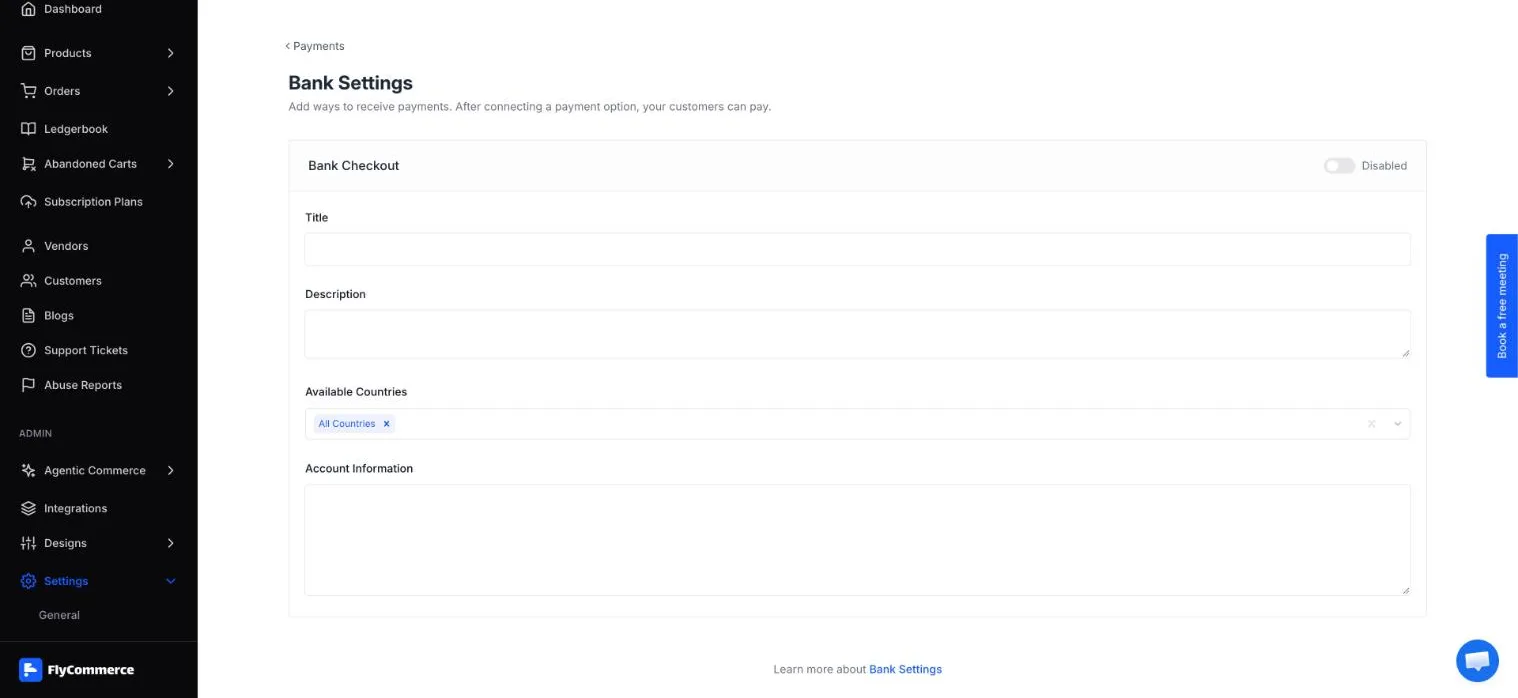
The Bank Settings page holds the Bank Checkout toggle and your account details.
Cash on Delivery is the other option under Manual Payments. Shoppers choose between the methods you have turned on at the Payment step of checkout.
Stop offering bank deposit
Section titled “Stop offering bank deposit”To stop offering Bank Deposit at checkout, open Settings → Payment, select Bank Deposit, and set Bank Checkout to Disabled. Shoppers stop seeing the option once it is disabled.
Check the option at checkout
Section titled “Check the option at checkout”After you turn on Bank Deposit, place a test order to confirm the option appears for shoppers.
- Add a product to the cart and click Proceed to Checkout.
- Enter contact information and complete the address and shipping step.
- On the Payment step, confirm that Bank Deposit appears with the title and description you entered.
Customers can only complete checkout once at least one payment method is connected. For the full path a shopper takes, see Understand the customer checkout flow.
Confirm incoming transfers
Section titled “Confirm incoming transfers”After a shopper places an order with Bank Deposit, we recommend confirming that the transfer has reached your bank account before you process the order.
Bank transfer for vendor payouts
Section titled “Bank transfer for vendor payouts”Paying vendors by bank transfer is a separate setting under Settings → Payout, where Bank Transfer is one of the payout methods. For payout setup, see Payout configuration.