Set Up Your Store
Use this guide to launch a standalone shop where you sell your own products. If other sellers will list products on your site, follow Set Up Your Marketplace instead.
Before you start
Section titled “Before you start”Have a business name, store address, product information, and a payment method ready. Review current plans and trial terms on the pricing page; prices and promotions can change.
1. Create your shop
Section titled “1. Create your shop”- Open the pricing page and choose a Shop plan or trial.
- Sign in to your account, or create one when prompted.
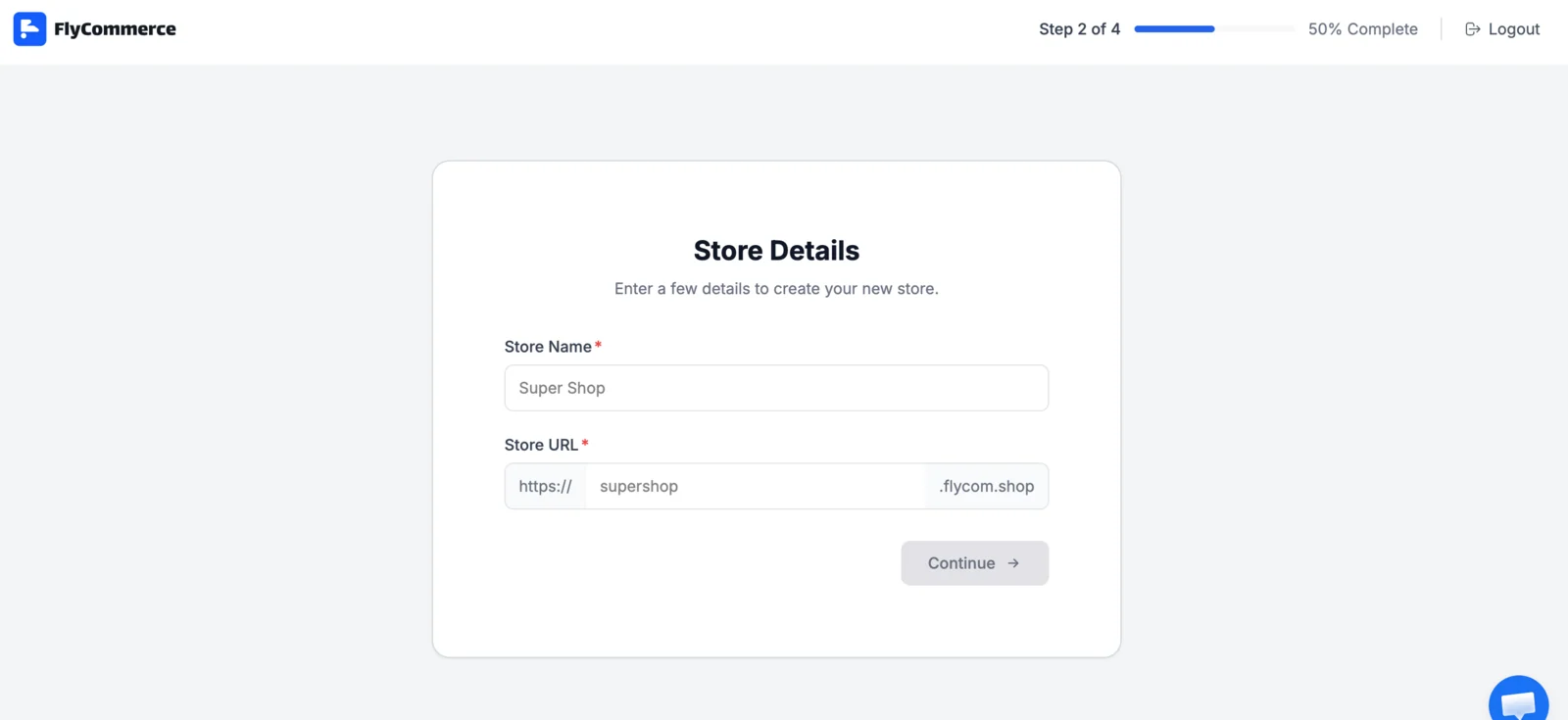
- Select Online Store when asked what you want to build, then enter a name for your shop.
- Continue to the store information step. Answer the setup questions or select Skip if you want to add that information later.
- Enter the store address and select Finish.
Note: If the setup flow offers AI-generated themes, copy, or sample products, review each item and replace anything that does not accurately describe your business before publishing.
2. Add your first product
Section titled “2. Add your first product”- In the dashboard, open Products and select Add Product.
- Enter the product name, description, price, images, and inventory details.
- Set shipping or digital-delivery details that apply to the product.
- Save the product and open its storefront page to check what customers will see.
See Create a product for field-by-field instructions.
3. Design and configure your storefront
Section titled “3. Design and configure your storefront”- Open Designs and choose a theme for your store.
- Customize the home page, shop page, and product page. Preview the storefront on desktop and mobile.
- In Settings, add your business details and publish your customer-facing policies.
- Configure a payment method, shipping regions, and tax settings before accepting live orders.
- Set up order and customer email notifications.
- Connect a custom domain when you are ready. Follow Connect a custom domain.
4. Test the store before launch
Section titled “4. Test the store before launch”- Open the public storefront in a private browser window.
- Place a test order using the payment provider’s test mode, if available.
- Confirm the checkout total, order confirmation, and new order in the dashboard.
- Check that product details, shipping, tax, policies, and contact information are correct.
- Remove sample content and confirm the pages you want customers to see are published.
Important: Do not use a real customer’s payment details for a test order. Review your payment provider’s test-mode instructions first.