Set up order tracking
Order tracking in FlyCommerce starts with shipments. Each shipment records the carrier and tracking number for the items it contains, and orders can be sent to a courier automatically. This guide is for store owners, marketplace admins, and vendors who ship their own items.
Choose a fulfillment method
Section titled “Choose a fulfillment method”The fulfillment method decides whether orders go to a courier or are shipped manually.
- On marketplaces, admins set the fulfillment method in Settings → Shipping, under Fulfillment Methods. Vendors can connect their own carrier accounts.
- On shop stores, open Shipping → Preferences and find the Fulfillment Services section.
Choose Third-party couriers to send orders to a connected courier or aggregator, such as Pathao, RedX, or Shippo. Choose Manual to create each shipment yourself.
Send orders to a courier automatically
Section titled “Send orders to a courier automatically”When you use third-party couriers, you can have orders pushed to the courier automatically.
- Go to Shipping → Preferences.
- Turn on Auto-push orders to courier.
When an order enters processing, FlyCommerce sends it to the courier the customer selected at checkout. You do not need to create a shipment manually for those orders.
Create a shipment manually
Section titled “Create a shipment manually”Create a shipment yourself when an order is not pushed to a courier. Each shipment records the number of products, the shipping status, the carrier, and the tracking number.
- Open the order and click Create Shipment.
- Enter the number of products to ship, the shipping status, the shipment carrier, and the tracking number.
- Click Done.
If an order has several items, ship some now and create a second shipment for the rest. Each parcel gets its own carrier and tracking number.
Split shipments in marketplace orders
Section titled “Split shipments in marketplace orders”A marketplace order can contain items from several vendors. FlyCommerce splits the order by vendor, and each vendor ships its own parcel. Vendors manage their shipments from their own order list. For the vendor steps, see Manage orders as a vendor.
Get shipment updates in your systems
Section titled “Get shipment updates in your systems”FlyCommerce sends shipment events through webhooks. The order.shipment.created event covers new shipments, and order.shipment.updated covers changes to existing shipments. For setup, see Webhooks.
Choose how customers get shipping notifications
Section titled “Choose how customers get shipping notifications”The customer contact method decides which contact details receive order and shipping notifications.
- Go to Settings → Checkout.
- Under Customer Contact Method, choose Phone number or email or Email.
With Phone number or email, customers enter a phone number or an email address at checkout. An SMS gateway is required to send SMS updates. With Email, customers enter an email address.
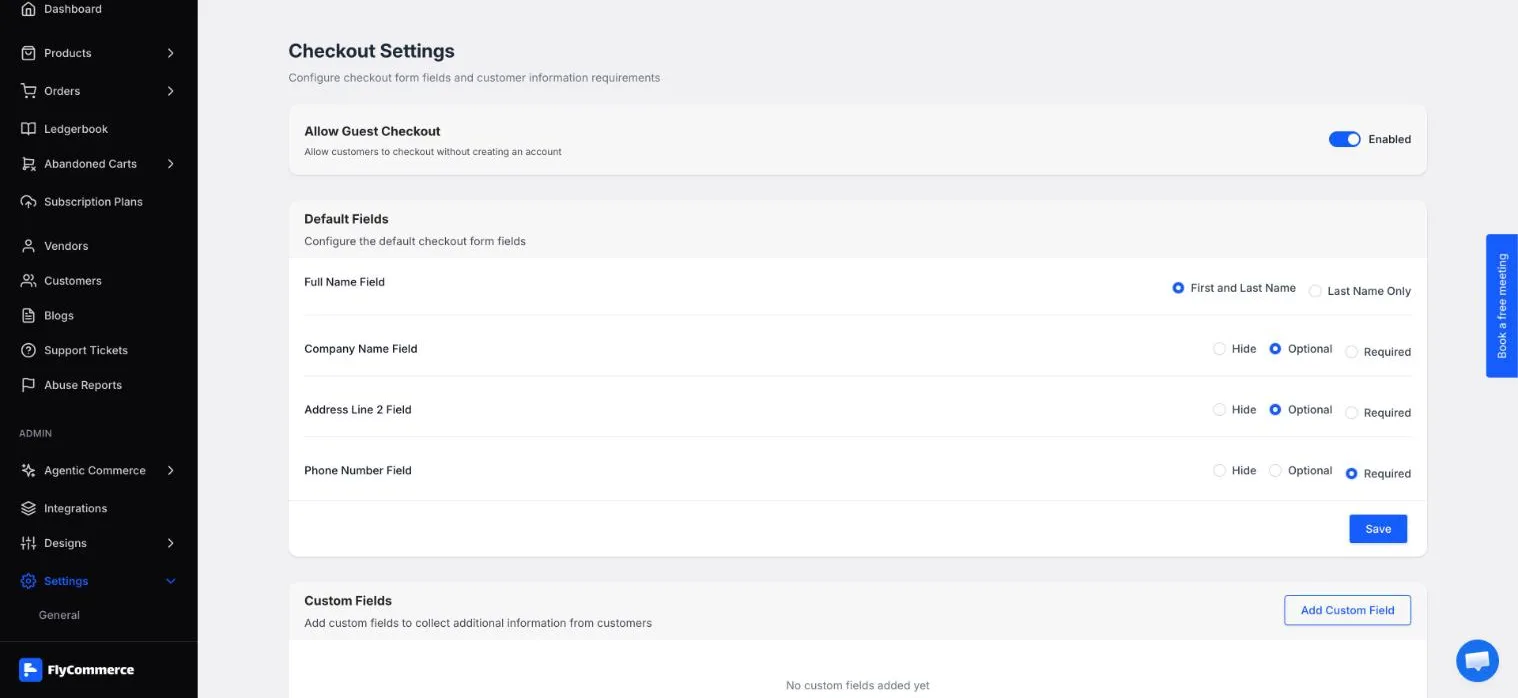
Customer Contact Method in Settings → Checkout sets where order and shipping notifications go.
Review the customer emails in Settings → Notification, such as Order Placed, Processing Order, and Complete Order, so the messages match how you ship orders.