Customize the cart page
Customers review their items on the cart page before they check out. FlyCommerce has no cart template in the page builder, so you shape the cart through the Cart block in your header, the cart settings, coupons, and checkout settings. Store owners and marketplace admins set up these controls.
What customers see
Section titled “What customers see”The storefront cart groups items by vendor, with the vendor’s name above each group. Each line has quantity controls (- and +) and a trash icon to remove the item. The Cart Summary shows the Subtotal, a “Have a coupon code ?” field, and the Total. Customers continue with Proceed to Checkout.
If the cart is empty, customers see “Your cart is empty — Visit marketplace and add products to cart”.
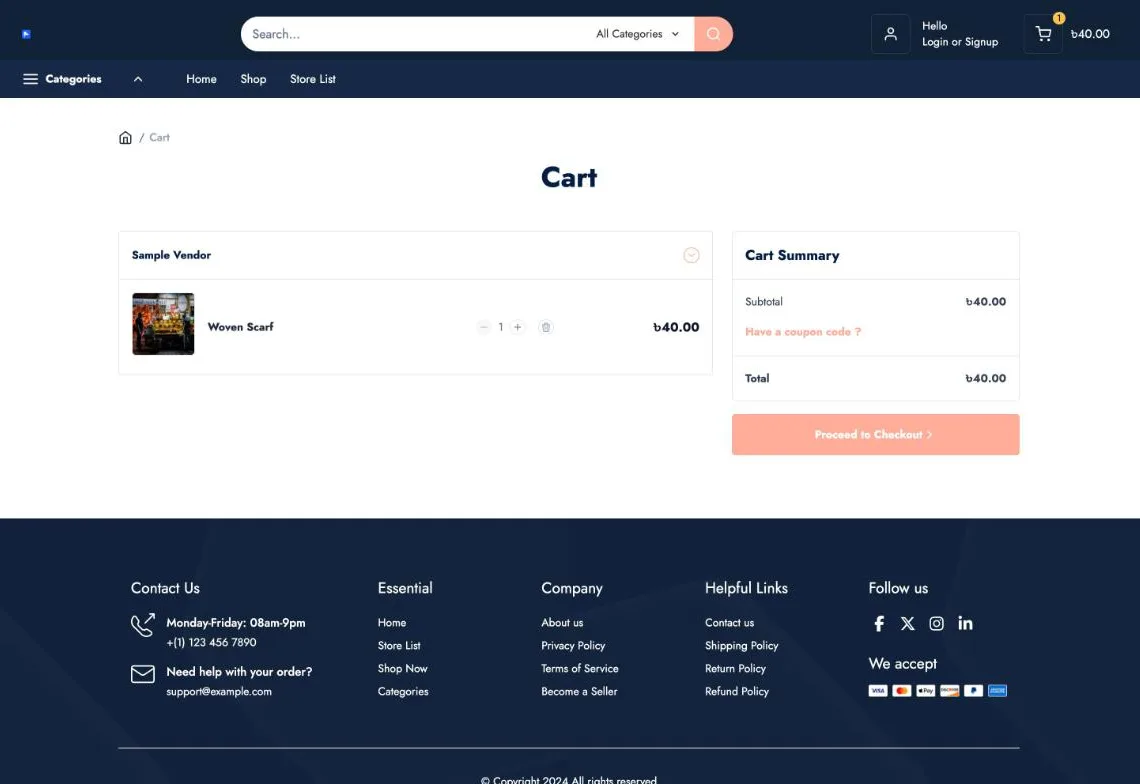
The storefront cart groups items by vendor and shows the Cart Summary with Proceed to Checkout.
Add the Cart block to your header
Section titled “Add the Cart block to your header”Because the page builder has no cart template, you add the cart icon to the header template part instead.
- Go to Designs → Themes, then select Customize on your current theme.
- Open the Header template part under Template Parts and select Edit.
- In the INSERT panel, open the Site group and add the Cart block to the header.
- Select Save in the top bar.
Set up abandoned cart recovery
Section titled “Set up abandoned cart recovery”Abandoned cart tracking records carts where the customer added items but did not complete checkout. Configure it in the cart settings.
- Go to Settings → Cart.
- Turn on Enable Abandoned Cart Tracking.
- Set the Abandoned Cart Timeout, for example 24 Hours.
- Set the Reminder Email Delay, for example 1 Hour. This sets how long to wait before the reminder email is sent, and the cooldown time between manual resends.
- Select Save Changes.
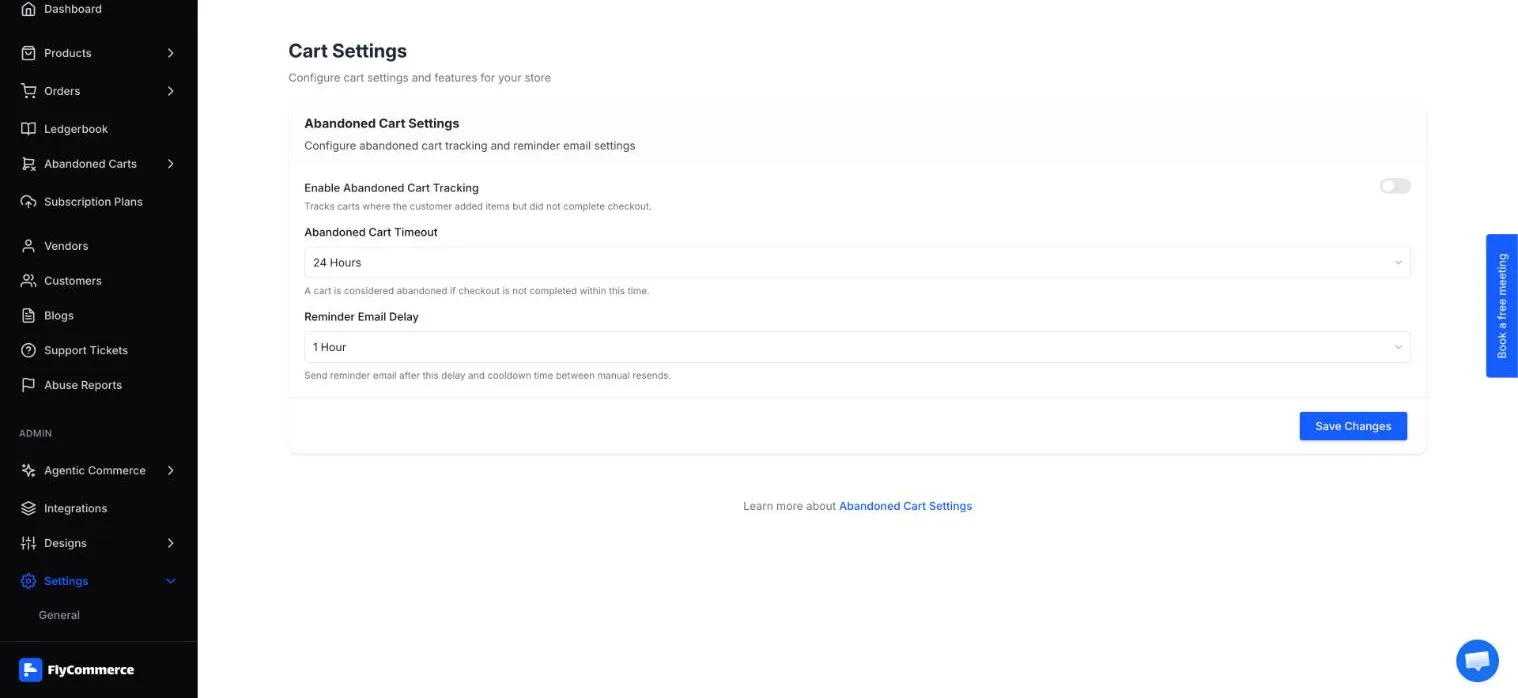
Cart settings control abandoned cart tracking, the timeout, and the reminder email delay.
To review recovery activity, open Abandoned Carts → Recovery Report in the admin sidebar.
Offer coupons in the cart
Section titled “Offer coupons in the cart”Customers enter a coupon code in the Cart Summary, using the “Have a coupon code ?” field. Create and manage coupons as described in Set up coupons.
Hand off to checkout
Section titled “Hand off to checkout”When a customer selects Proceed to Checkout, FlyCommerce opens the checkout page. It has four steps: Contact information, address details, Orders, and Payment. Customers can return to the cart from the checkout page with the Return to Cart link.
Customers can complete checkout only after at least one payment method is connected in Settings → Payment. To change the checkout fields and options, see Customize the checkout page.
Show stock and pre-order status
Section titled “Show stock and pre-order status”Stock is set on each product. Turn on Enable product stock management in the product’s Inventory section, then enter a Stock Quantity and a Low stock threshold. Storefront product pages show a stock badge, such as In Stock.
Pre-order products show a Pre-order button in place of Add to Cart, along with the ship date and deposit text. A pre-order can’t be combined with backorders. For stock settings, see Inventory and stock alerts.