How to Create a Product in FlyCommerce
Use this guide to add a product to your FlyCommerce catalog. The fields available can depend on the product type and your store configuration.
Add a product
Section titled “Add a product”- Sign in to your FlyCommerce dashboard.
- Open Products and choose Add Product. If your dashboard uses different menu labels, open the product catalog and select its add or create action.
- Choose the product type offered for your catalog.
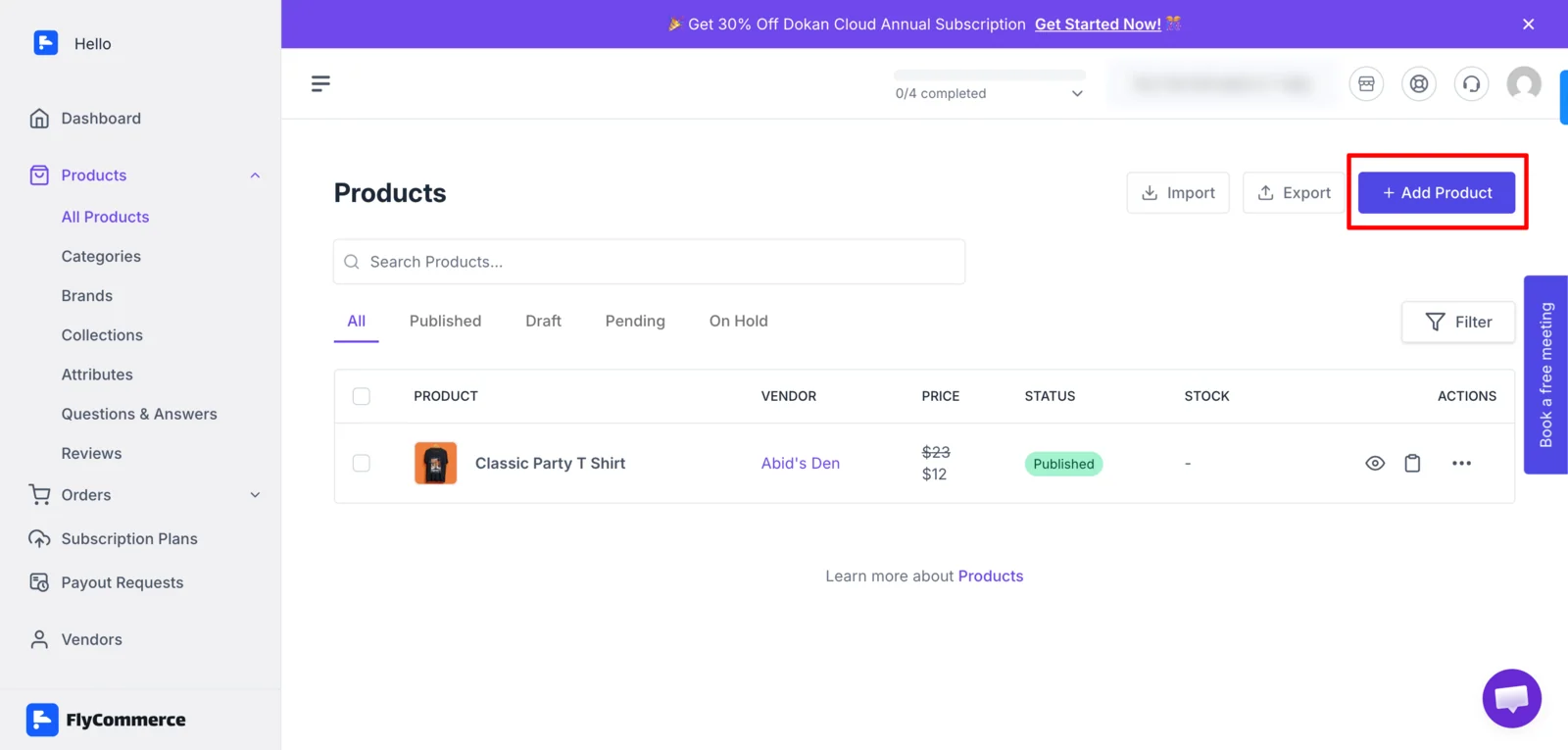
From the product catalog, choose Add Product to open the product editor.
- Enter the product name and description, then add the relevant category, images, and tags.
- Set the price and any sale price. Complete applicable tax and cost fields according to your store’s configuration.
- Add inventory details such as SKU, barcode, stock quantity, and backorder settings when available.
- Add attributes and variations when the product has options such as size or color.
- Review the storefront visibility and publication status. Save the product as a draft or publish it when it is ready.
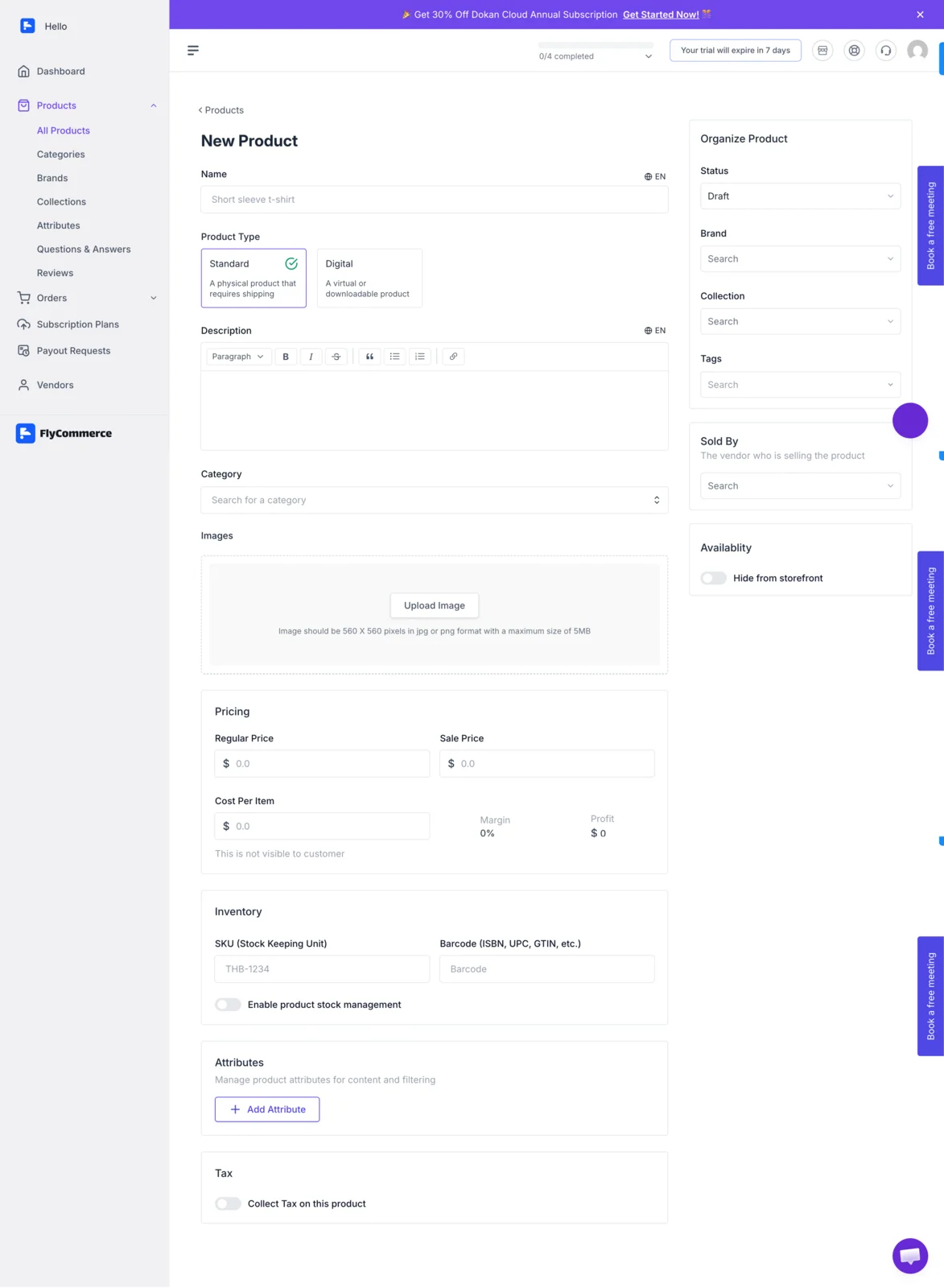
The New Product form groups the core catalog fields and product settings.
For products created by an administrator on behalf of a vendor, select the vendor or seller assignment field if it is available. Confirm the product is assigned to the intended vendor before publishing.
Digital products
Section titled “Digital products”If your catalog offers a digital product type, select it before completing the product details. Follow the upload or file-link options shown in your dashboard. Review the accepted file types, access behavior, and download settings displayed there; these options can change, so do not rely on instructions for a different FlyCommerce version.
Product search appearance
Section titled “Product search appearance”If your product editor provides SEO or search appearance settings, review the title, description, indexing controls, and social preview fields shown there. These settings are separate from the product’s name and description displayed in the catalog.
Review before publishing
Section titled “Review before publishing”- Check the product name, description, images, price, and selected options.
- Confirm stock and visibility settings.
- Check the vendor assignment, if applicable.
- Preview the product on the storefront after publishing.
For bulk catalog changes, see How to Export & Import Products.