Set up digital product delivery
A digital product is a virtual or downloadable item that doesn’t require shipping. Store owners and vendors set up digital products in the product form by choosing the Digital type and attaching the files customers can download.
Create a digital product
Section titled “Create a digital product”- Go to Products → All Products, then click Add Products.
- In Product Type, select Digital (“A virtual or downloadable product”).
- Enter your Regular Price, and a Sale Price if you offer one.
- Scroll to Downloadable Files (“Let customers download a digital downloadable file after purchase”) and click Add Downloads.
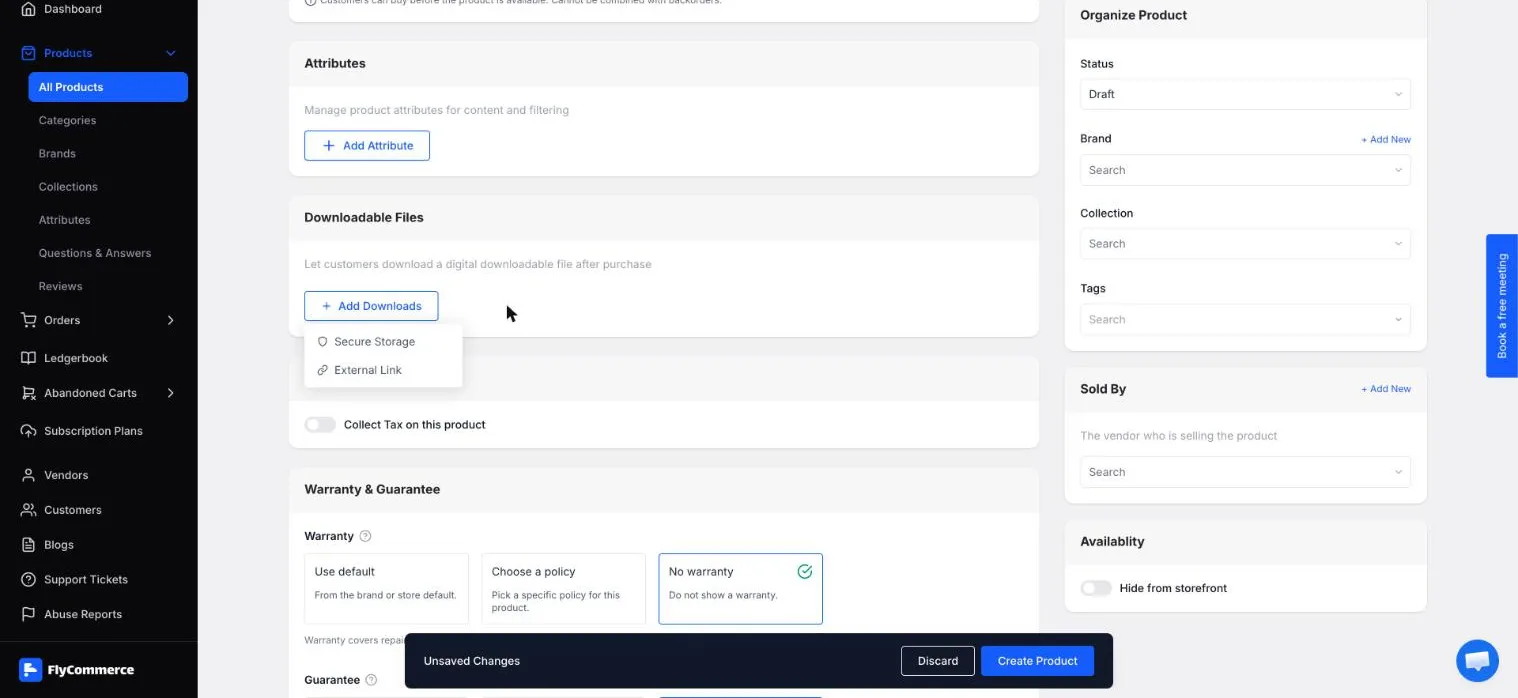
The Downloadable Files section, where you add the files customers receive after purchase.
Choose a storage option
Section titled “Choose a storage option”After you click Add Downloads, choose one of the two storage options.
- Secure Storage opens the Insert Media dialog, which is marked Private. Click Upload File and select Local Computer to upload a file from your device, or choose an existing file from the Media Library.
- External Link points customers to a file hosted outside FlyCommerce.
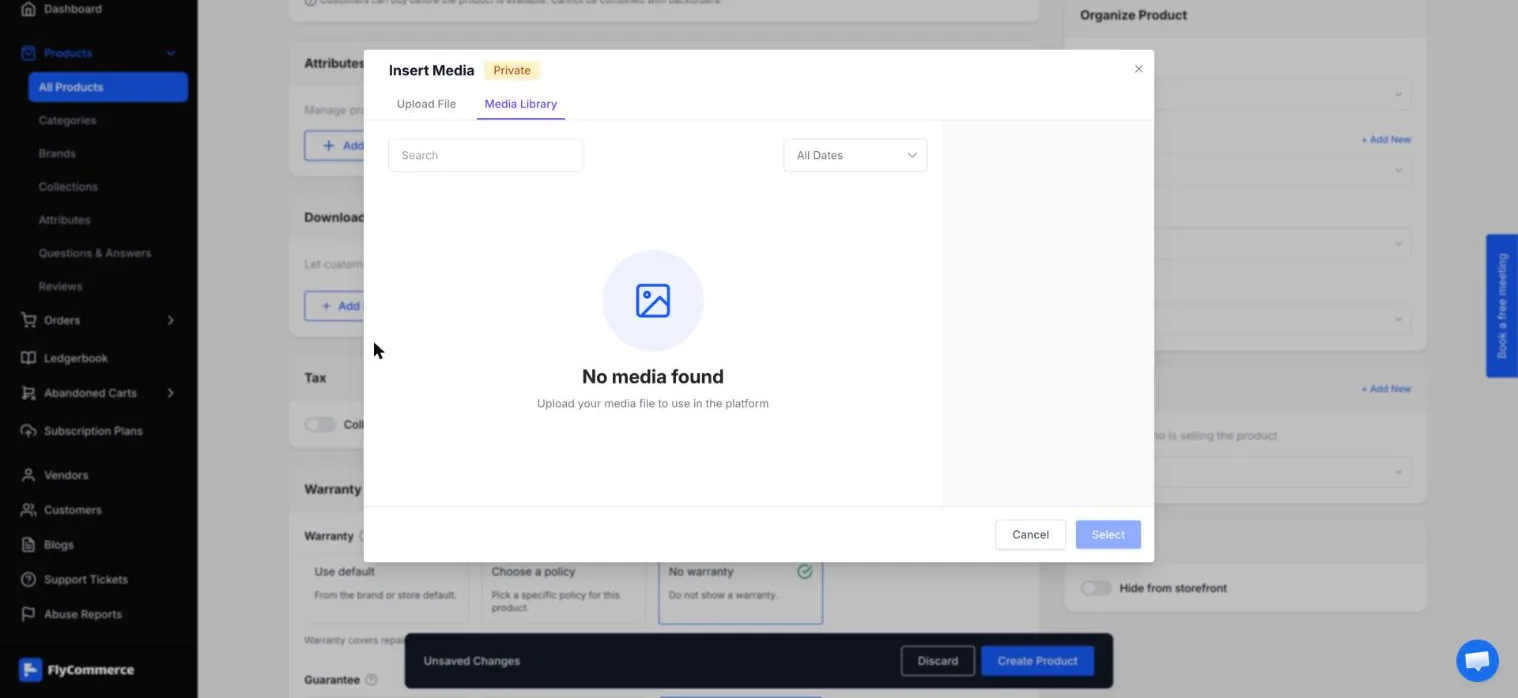
Secure Storage opens a private Insert Media dialog for uploading or choosing files.
Use Secure Storage when you want to keep the file in FlyCommerce. Use External Link when the file is hosted somewhere else. The maximum upload size in Secure Storage is 25MB.
Check the product type and inventory settings
Section titled “Check the product type and inventory settings”- The product type can’t be changed on an existing product, so confirm Digital before you save.
- Digital products don’t show an Inventory section, so stock fields such as SKU and Stock Quantity don’t apply to them. For stock tracking, see Manage inventory and stock alerts.
Check the product in your list
Section titled “Check the product in your list”- Go to Products → All Products.
- Find the product and check its STATUS column. Use the Published tab to confirm the product is live, or the Draft tab if you’re still preparing it.
- Open the product on your storefront to confirm that the page loads with the price you entered.
If you need to sell a product as a file and as a physical item, create a separate Standard product for the physical item. Each product has its own type and settings.