Set up free shipping rules
Free shipping in FlyCommerce is set on each shipping rate. Store owners and marketplace admins use these settings to offer free shipping on larger orders in the regions each rate covers.
Before you start, set up your shipping zones and rates. See Set up shipping zones and rates.
Set a free shipping threshold
Section titled “Set a free shipping threshold”- Open the shipping profile that contains the rate. On a marketplace store, go to Settings → Shipping. On a shop store, go to Shipping → Profiles.
- Edit the rate you want to change. A rate can be a Weight Based Rate, a Price Based Rate, or a Flat Rate.
- Select the checkbox Offer free shipping when a customer buys over a certain amount.
- Enter the Minimum Order Amount that qualifies an order for free shipping.
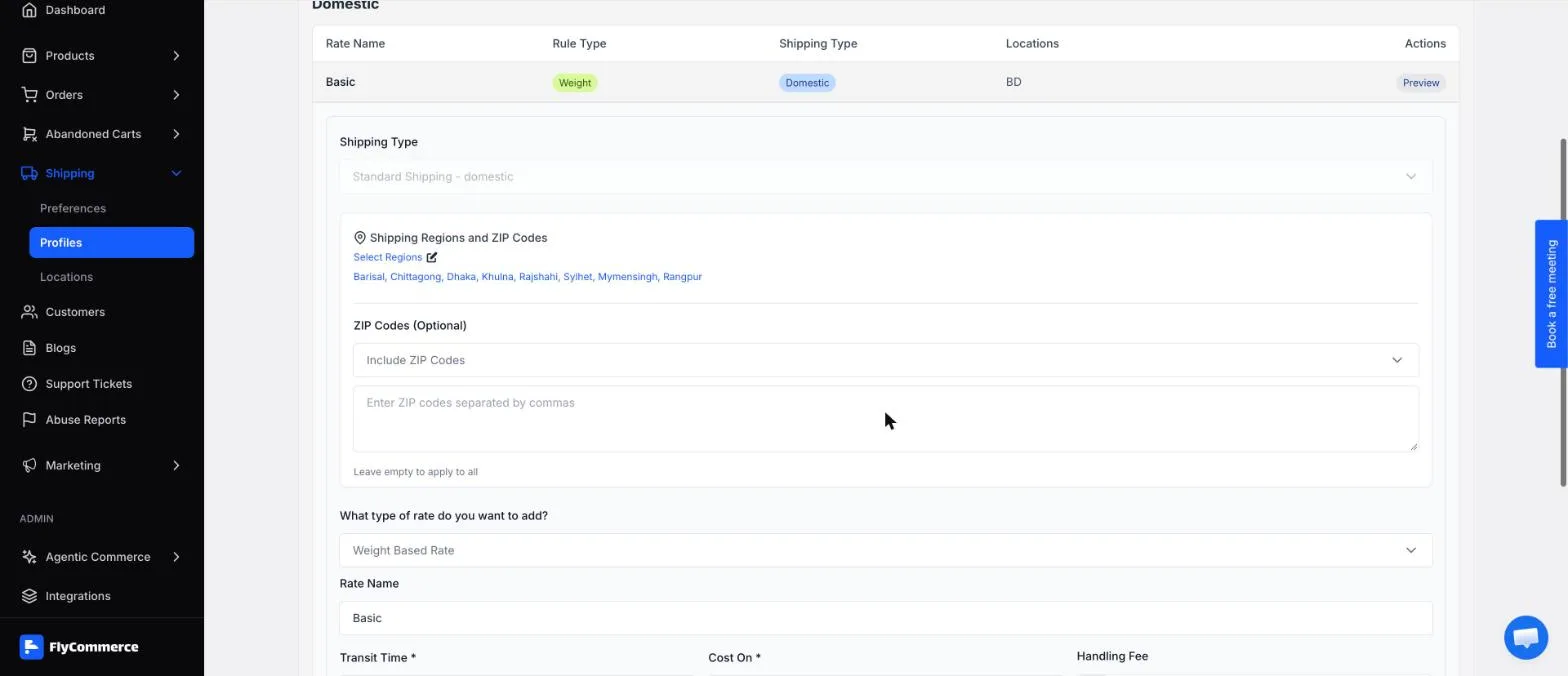
Edit a shipping rate to offer free shipping for orders above a minimum amount.
- Confirm the regions for the rate. Add optional ZIP codes if you want to limit the rate to specific areas.
- Save your changes.
Free shipping applies to each order that meets the minimum. Compare the amount with your typical order values and shipping costs before you publish the rate.
Plan rate combinations
Section titled “Plan rate combinations”A shipping profile can contain more than one rate. Keep these points in mind as you plan:
- Mixed rate types. A profile can include price-based and weight-based rates. Test each rate with a sample order before you rely on it, and confirm the shipping cost shown at checkout.
- Flat rates as an option. You can set a Flat Rate with a zero amount if a region should always ship free. Check how it displays at checkout with a test order.
- Overlapping regions. Review the regions and ZIP codes on each rate so customers in an area see the shipping option you intend.
- Marketplaces. Vendors can connect their own carrier accounts. Review the shipping setup that applies to each vendor’s products.
Verify free shipping at checkout
Section titled “Verify free shipping at checkout”Run a checkout test before you announce a free shipping offer.
- Enable the Test Gateway under Settings → Payment for test orders. It accepts the card number
4242 4242 4242 4242. - Add items to the cart that total less than the minimum order amount, then select Proceed to Checkout.
- In the Order Summary, confirm the shipping charge matches the rate you set.
- Select Return to Cart, then add items until the order meets the minimum. Confirm the shipping charge is removed and the Total updates.
- Open the test order in Orders → All Orders and confirm the shipping amount is recorded.
If the shipping charge does not match your rate settings, check the rate’s regions and Minimum Order Amount before you publish.