Set up webhooks
Webhooks send real-time notifications to an endpoint you control whenever selected events happen in your FlyCommerce store, such as a product update or a shipment. Store owners and marketplace admins set up webhooks from the admin dashboard.
Open the Webhooks page
Section titled “Open the Webhooks page”- In the admin sidebar, select Integrations, then select Manage on the Webhooks card.
- If you have not added a webhook yet, the page shows “Let’s add your first webhook.” Select Add Webhook.
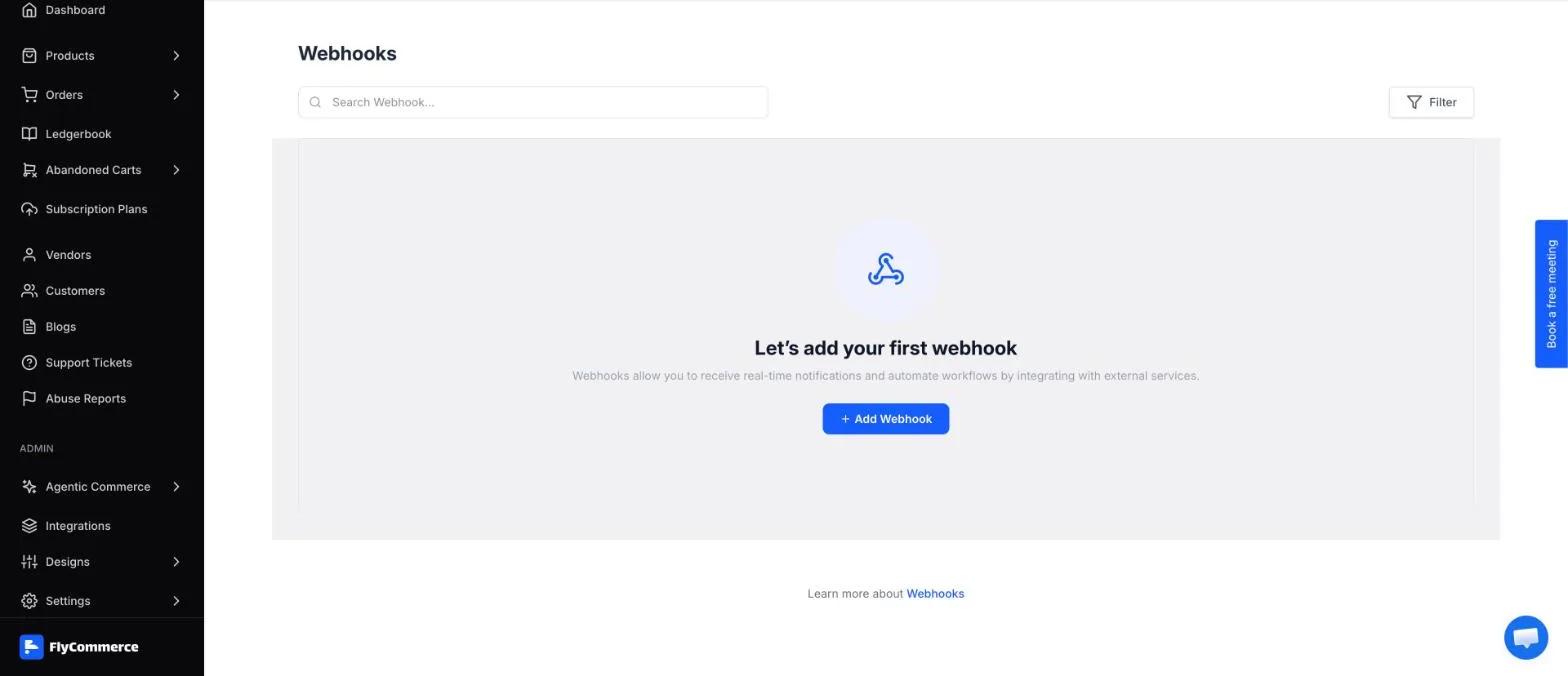
The Webhooks page shows this message until you add your first webhook.
Add a webhook
Section titled “Add a webhook”- In the Add Webhook dialog, enter the URL that should receive events in Endpoint. The field shows a placeholder such as
https://example.com/webhook.
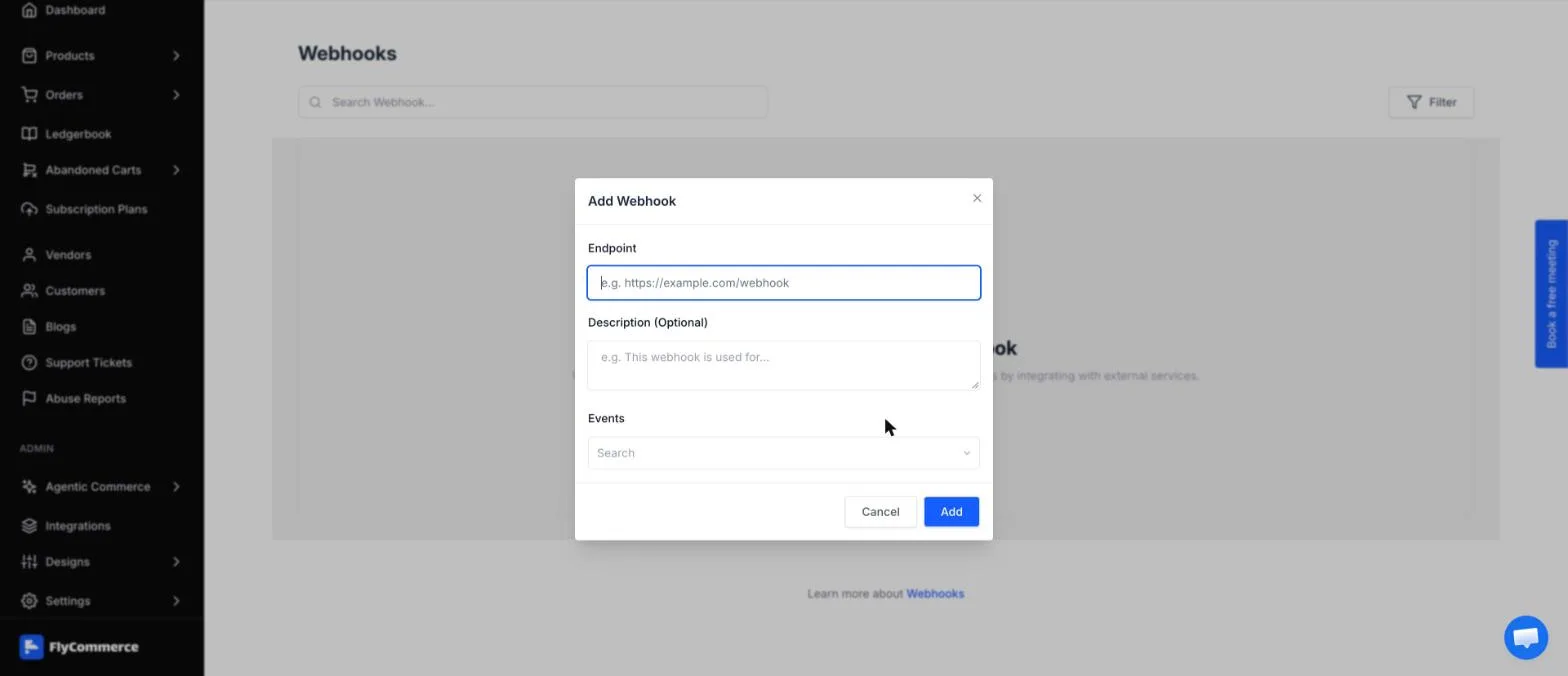
The Add Webhook dialog collects the endpoint, an optional description, and the events to send.
- Optionally, enter a note in Description (Optional) so you can tell this webhook apart from others.
- Open Events and select the events you want this webhook to receive. The list is searchable and grouped by resource, such as PRODUCT, CATEGORY, and ORDER.
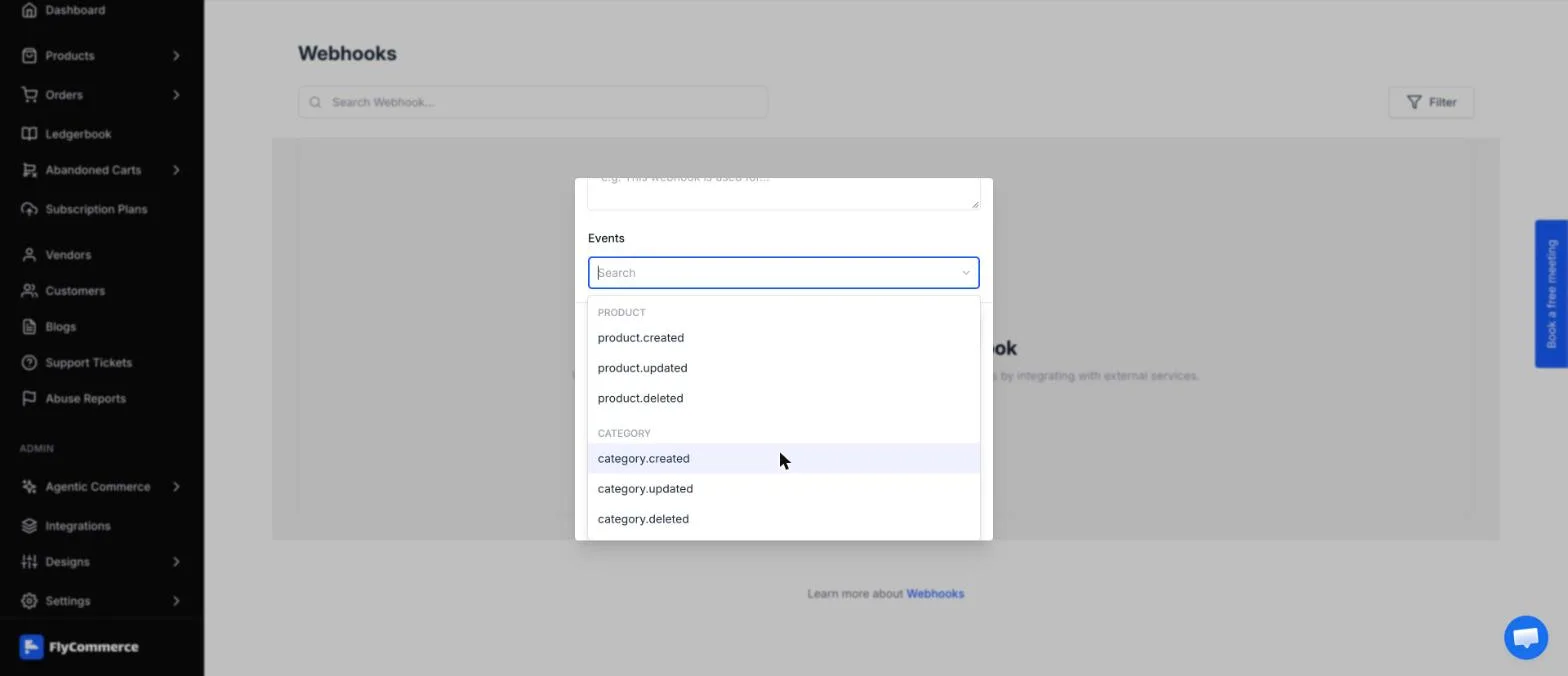
The Events dropdown groups events by resource. Select only the events your system needs.
- Select Add to save the webhook, or select Cancel to discard it.
Choose events
Section titled “Choose events”FlyCommerce offers 20 events across the product, category, collection, brand, and order resources. Subscribe to the events your system needs and no more.
| Event | When it fires |
|---|---|
product.created | A product is created. |
product.updated | A product is updated. |
product.deleted | A product is deleted. |
category.created | A category is created. |
category.updated | A category is updated. |
category.deleted | A category is deleted. |
collection.created | A collection is created. |
collection.updated | A collection is updated. |
collection.deleted | A collection is deleted. |
brand.created | A brand is created. |
brand.updated | A brand is updated. |
brand.deleted | A brand is deleted. |
order.created | An order is created. |
order.updated | An order is updated. |
order.deleted | An order is deleted. |
order.canceled | An order is canceled. |
order.completed | An order is completed. |
order.refund.created | A refund is created for an order. |
order.shipment.created | A shipment is created for an order. |
order.shipment.updated | A shipment for an order is updated. |
Find and manage webhooks
Section titled “Find and manage webhooks”On the Webhooks page, search for a webhook with the Search Webhook… box, or select Filter to narrow the list.
Recommendations for your endpoint
Section titled “Recommendations for your endpoint”- Use an HTTPS endpoint you control.
- Subscribe only to the events you need. Each extra event adds traffic your endpoint must handle.
- Respond quickly, then process the work asynchronously, so slow processing does not delay the response.
- Make your handling idempotent (safe to repeat). The same event may be delivered more than once, so receiving it again should not create duplicate records or changes.