Configure vendor payouts
Payout settings control how marketplace vendors get paid. From Settings → Payout, you choose whether payouts are scheduled or requested, set the rules for when vendor balances can be withdrawn, and turn on the payout methods vendors can use. Vendors see the payout options you enable and receive email notifications for payout requests, approvals, and cancellations.
Choose a payout option
Section titled “Choose a payout option”Under Payout Options, choose how vendors are paid:
- Automatic/Scheduled lets you schedule or automate your payout process.
- Manual/Request Payout lets vendors request a payout. Each request stays pending until an admin approves it.
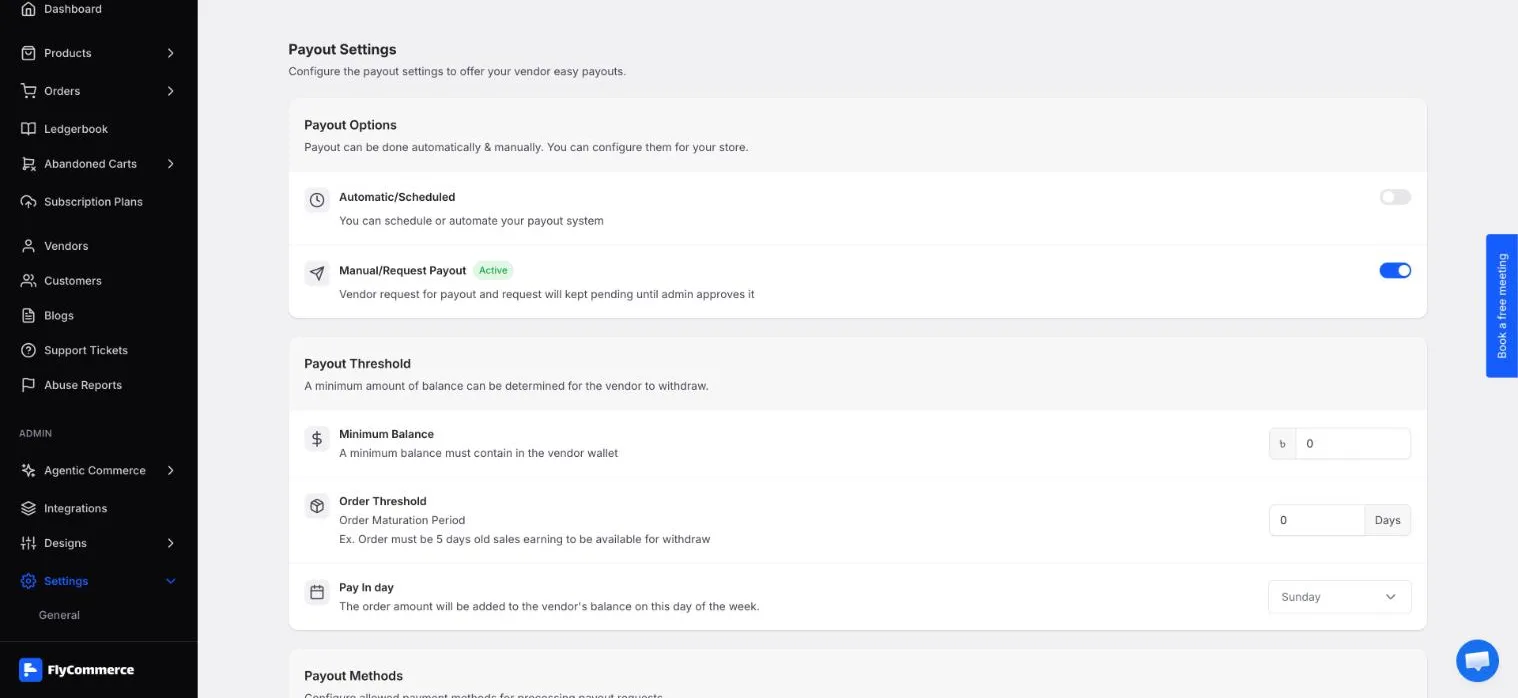
The Payout Settings page lists the Automatic/Scheduled and Manual/Request Payout options.
Set payout thresholds
Section titled “Set payout thresholds”Under Payout Threshold, set the rules that control when a vendor’s earnings can be withdrawn:
- Minimum Balance is the minimum amount a vendor wallet must hold before a withdrawal.
- Order Threshold (Order Maturation Period in days) sets how old an order must be before its earnings are available for withdrawal. For example, a value of 5 means an order’s sales must be 5 days old before they can be withdrawn.
- Pay In day sets the day of the week when order amounts are added to the vendor’s balance, such as Sunday.
Set these three values together. A higher minimum balance means vendors can withdraw less often, and a longer order threshold keeps recent sales out of the withdrawable balance for longer.
Enable payout methods
Section titled “Enable payout methods”Under Payout Methods, the available methods are Bank Transfer, bKash, Nagad, and Rocket. Each method shows its status, such as Disabled, and a Manage button. The methods you can offer can vary by store region, so turn on only the methods that are available for your marketplace’s region.
- Click Manage next to the payout method.
- Turn on Allow payout method for vendor.
- Under Transaction Fees, enter a flat amount, a percentage, or both. Fees adjust the calculated rates to account for transaction costs.
- Click Save.
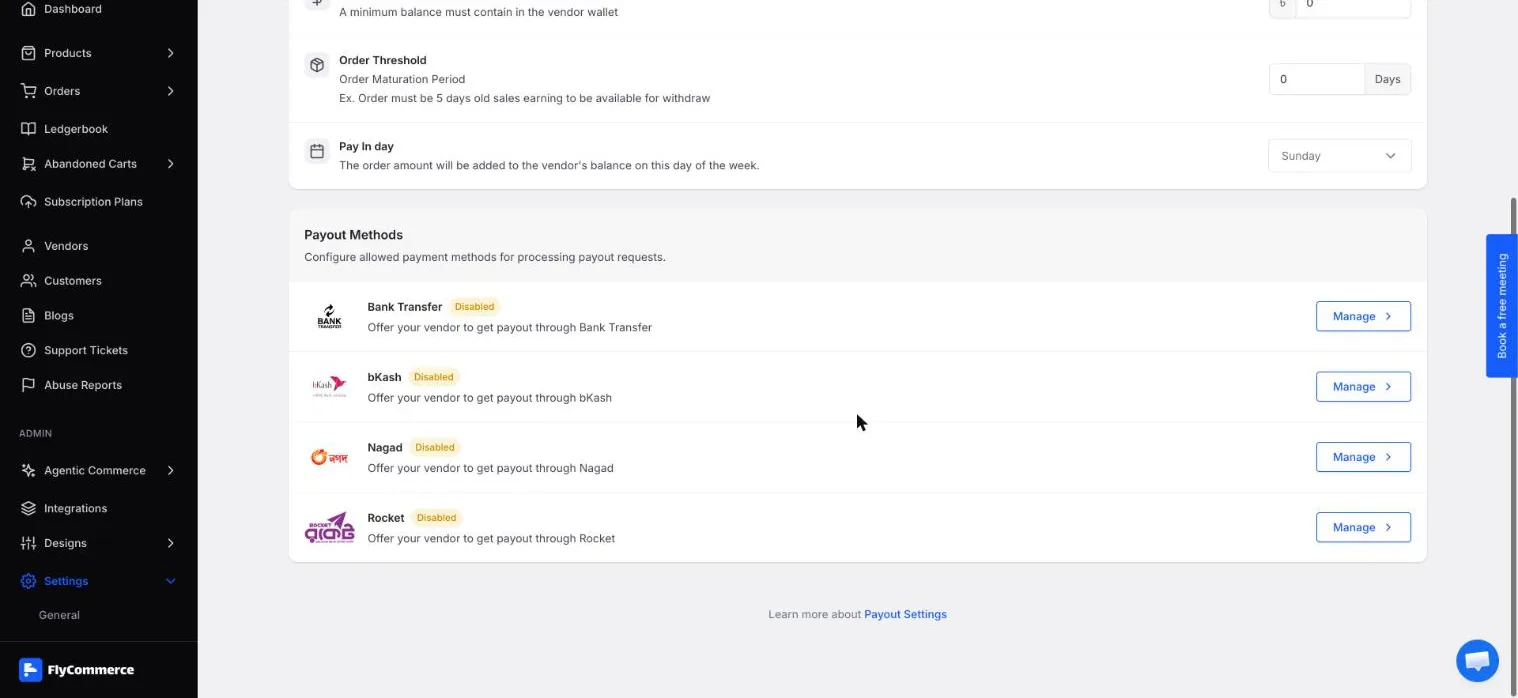
Each payout method shows its status and a Manage button.
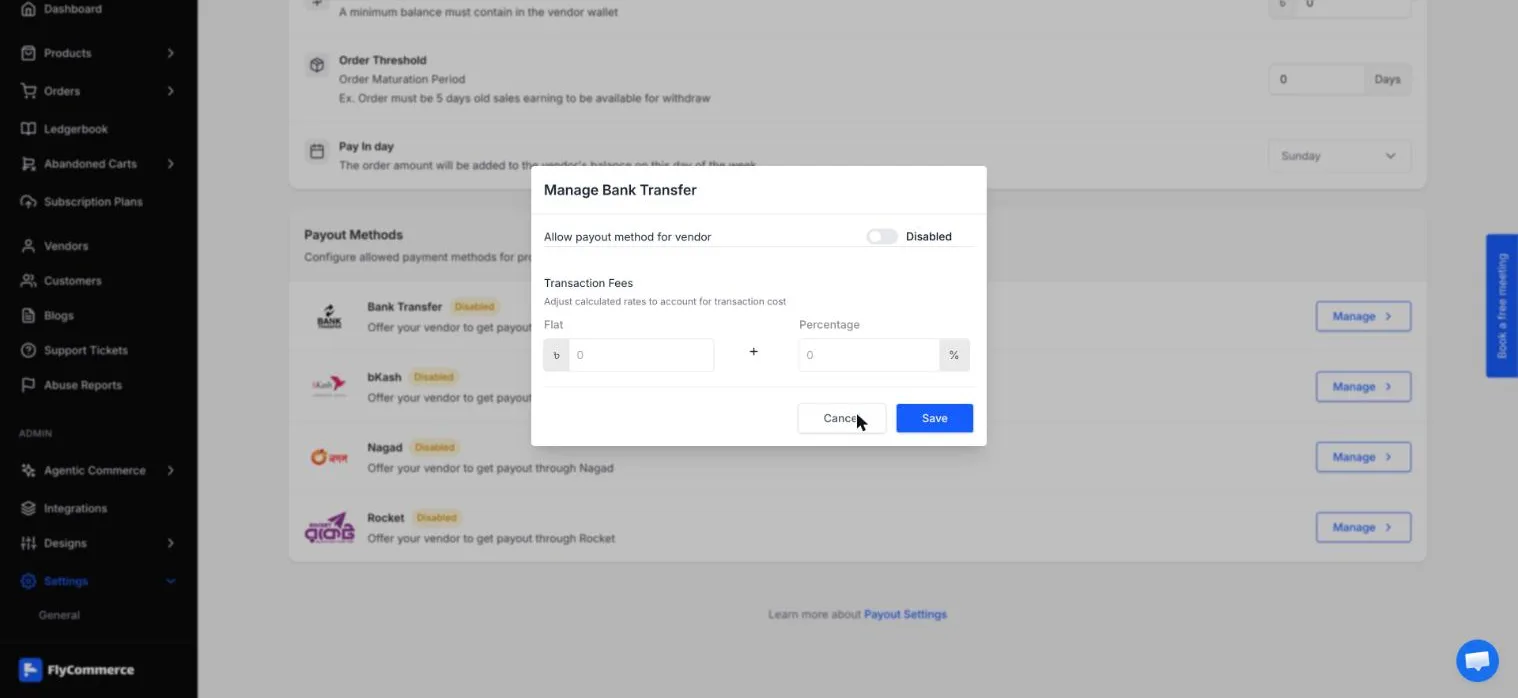
The Manage dialog controls vendor access and transaction fees for a payout method.