Navigate the Admin Dashboard
The admin dashboard is the main workspace for managing a Shop or Marketplace. Available sections depend on your store type and team permissions.
Open a dashboard section
Section titled “Open a dashboard section”- Sign in to your account and select the store you want to manage.
- Use the left navigation to open a work area. Common sections include Products, Orders, Vendors, Customers, Designs, and Settings.
- If the navigation is collapsed, select the menu icon to expand it.
- Select a record or setting to open its details. Use the page filters or search field when the list provides them.
A standalone Shop does not show Marketplace-only areas such as vendor management. A team member may also be unable to see sections they do not have permission to access.
Review store activity
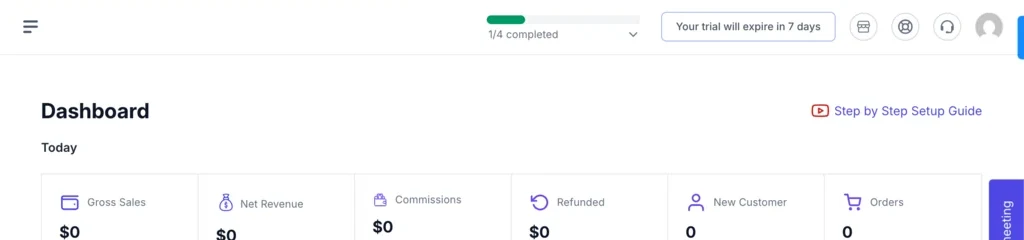
Section titled “Review store activity”Open Dashboard to review the report cards and sales charts available to your account. Use the date controls on the page to change the reporting period. Dashboard totals depend on the selected period and the store’s order activity.
Check notifications
Section titled “Check notifications”Select the notification bell in the dashboard header to review in-app alerts. Email preferences are managed separately. See Email Notifications.
Contact support
Section titled “Contact support”Use the support option in the dashboard to open a ticket. Include your store name, a short description, and relevant order or product references. Do not send passwords or payment-card details.
If a section in this guide is not visible, confirm that you selected the correct store and that your account has the required permissions.