Store Policy Settings
Policy settings connect published pages to the customer-facing links in your store. Prepare accurate policy text before enabling a policy. Get qualified legal advice if you need help writing terms for your business.
1. Create and publish a policy page
Section titled “1. Create and publish a policy page”- In the dashboard, open Designs → Pages.
- Select Add Page.
- Enter a page name and URL slug.
- Choose Builder or Editor, add the policy text, and preview the page.
- Set the page status to Published and select Save.
2. Connect the page to a policy
Section titled “2. Connect the page to a policy”- Open Settings → Policies.
- Find the policy you want to configure, such as Privacy Policy, Terms of Service, Return Policy, or Refund Policy.
- Turn on Enabled.
- Select the published page from the Page list.
- Select Save Changes.
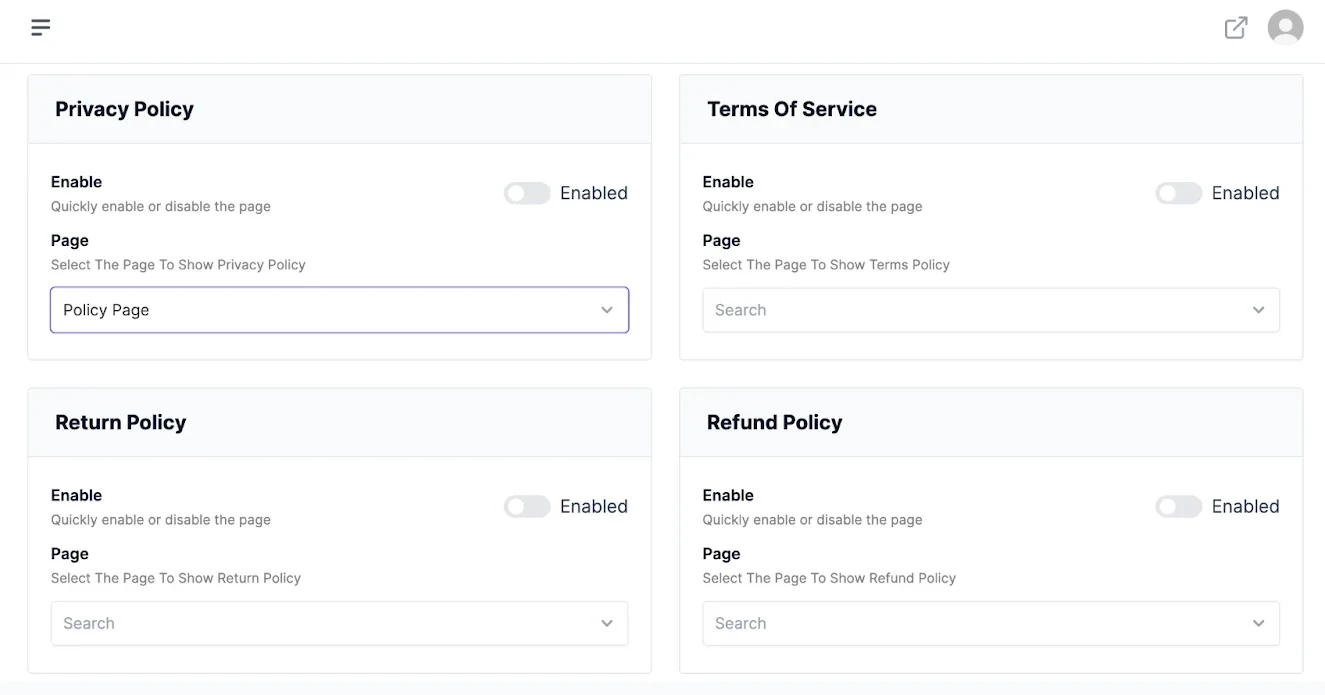
Repeat these steps for each policy page you want to show in your store. If a page does not appear in the selector, return to Designs → Pages and confirm it is published.
3. Verify the customer-facing links
Section titled “3. Verify the customer-facing links”- Open the storefront in a private browser window.
- Follow each policy link and confirm it opens the correct page.
- Check the page on desktop and mobile.
- If you disable a policy later, verify that its storefront link no longer appears.
Note: Only enable policies you have reviewed and approved. Customers may rely on the terms published in your store.