Customize the home page
Your home page introduces your store or marketplace and helps visitors find products. Use the FlyCommerce Page Builder to arrange sections that fit your brand and business.
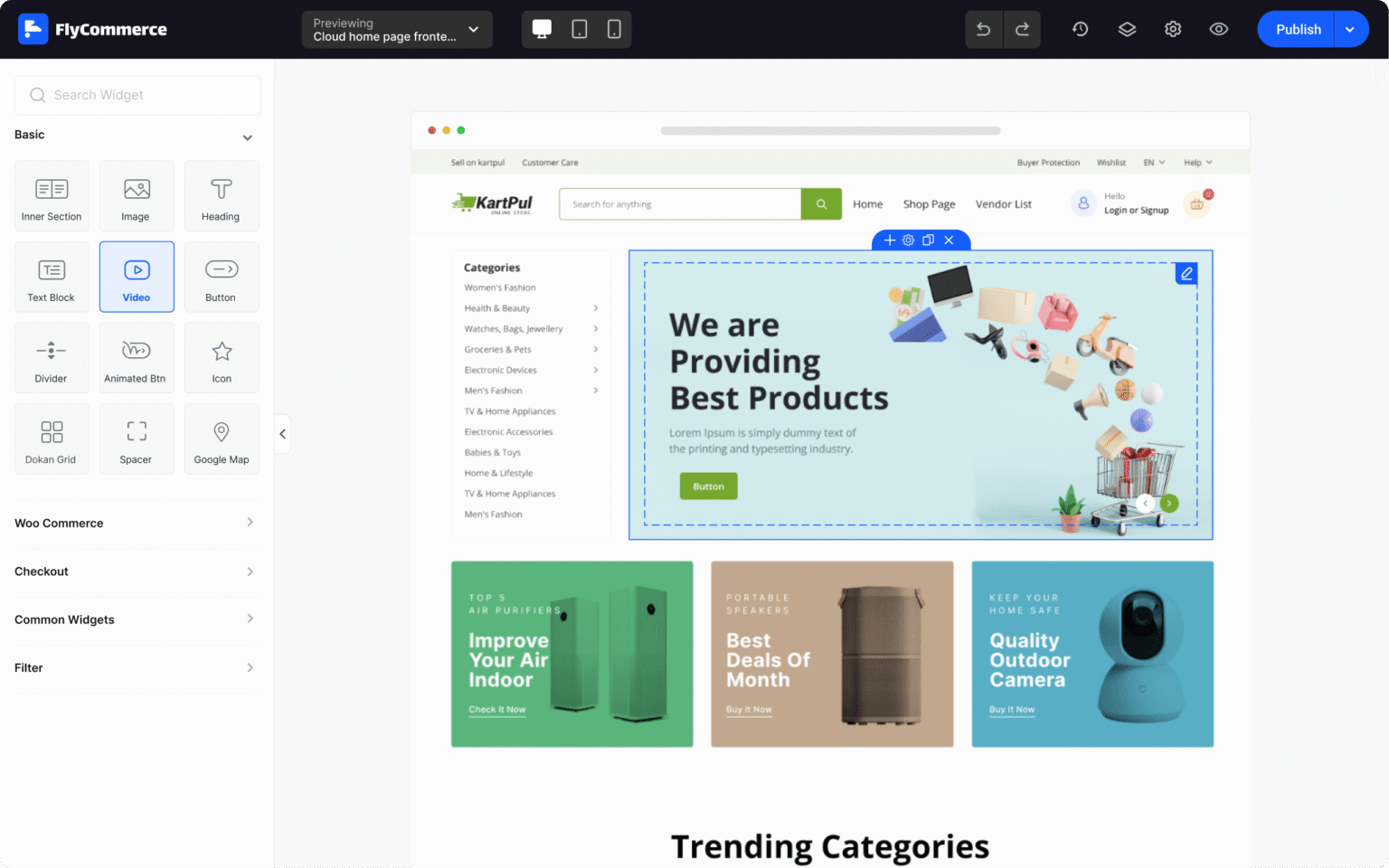
Use the page canvas to select and edit home page sections, then preview the layout before publishing.
Before you begin
Section titled “Before you begin”- Add the products, collections, and categories you want to feature.
- Prepare approved copy, product imagery, and links.
- Decide whether the page is for a standalone shop or a marketplace. A marketplace home page may need to explain how customers can discover products from multiple vendors.
Open the home page in the editor
Section titled “Open the home page in the editor”- Sign in to your FlyCommerce dashboard.
- Open the storefront design area and select the home page or its active template.
- Choose the option to edit it in the Page Builder. Menu names can vary as the dashboard changes.
If the home page is not listed, check which template is active and whether your account can manage storefront design.
Arrange your home page
Section titled “Arrange your home page”- Review the existing sections before changing the layout.
- Add, remove, or reorder sections with the controls available in the editor.
- Use the available content blocks and widgets to add items such as an introduction, featured products or collections, category links, and a clear call to action.
- Select each section to edit its content and appearance. Use concise headings, descriptive image text where available, and links that lead to the intended destination.
- Preview desktop and mobile layouts. Check that important content is visible, text is readable, and buttons and links work.
- Save or publish the page, then open the storefront in a separate browser tab to confirm the live result.
Standalone shop and marketplace considerations
Section titled “Standalone shop and marketplace considerations”For a standalone shop, focus the page on the store’s product range, key categories, and buying information. For a marketplace, explain the marketplace’s value, make product discovery easy, and link to relevant vendor or category listings where those features are enabled. Do not imply a vendor feature is available unless it is enabled for your marketplace.
Keep the page current as products, promotions, and policies change. Recheck links and mobile layout after each significant edit.
For editor basics, see Page Builder overview.