Manage Your Team
Team access lets other people help manage your Shop or Marketplace. Give each person only the permissions they need for their work.
Invite a team member
Section titled “Invite a team member”- In the dashboard, open Settings → Team.
- Select Invite New Member.
- Enter the person’s email address and phone number. Add a designation if needed.
- Set the member’s status.
- Select the permissions they need. You can grant access by product, order, customer, vendor, settings, and other available areas. Use Select All only when the person needs every permission in that group.
- Review the access you selected, then select Send Invitation.
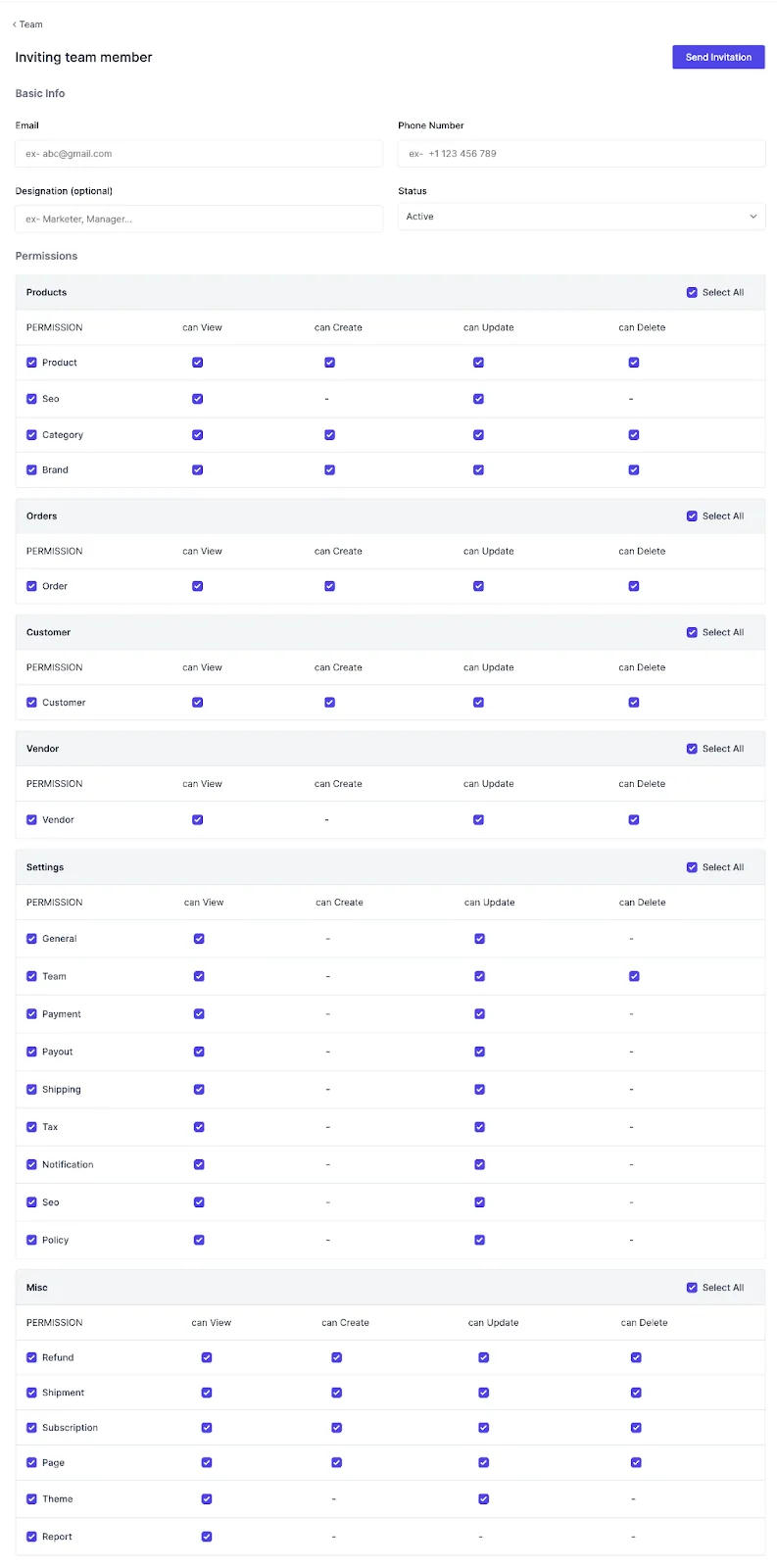
The invitation appears in the Invited list. The team member must accept the invitation before they can use the dashboard.
Important: Granting broad permissions can let a team member change store settings or manage orders and vendors. Review each permission before sending the invitation.
Review or remove access
Section titled “Review or remove access”- Return to Settings → Team.
- Use All, Active, Inactive, or Invited to find the member.
- Open the member’s action menu to review or edit their access, change their status, or remove them.
- Save the changes and confirm the member’s status in the list.
Review team access when a person changes roles or no longer needs access to your store.